
RDN-SFDC Integration
This guide provides step-by-step instructions for integrating Salesforce (SFDC) with the RDN platform using a metadata-driven, asynchronous integration package.
1. Purpose
This guide provides step-by-step instructions for integrating Salesforce (SFDC) with the RDN platform using a metadata-driven, asynchronous integration package.
It covers:
- Installation & configuration steps
- Metadata setup and field mappings
- Operational workflows and troubleshooting
- Security, compliance, and performance considerations
Audience:
- Salesforce Administrators
- RDN Integration team
- Developers supporting Salesforce customizations
2. Prerequisites
Before starting the integration, ensure the following:
- Salesforce Access: System Administrator profile.
- Environment: Salesforce Sandbox for testing, Production for rollout.
- Required Package: RDN Managed Package (install link provided).
- API Credentials: Valid RDN Auth Token.
- Remote Site Settings: Must allow the RDN API base URL.
- Version Compatibility: Salesforce Lightning Experience recommended.
- Connected App: Ensure API Enabled.
3. Architecture & Data Flow
Architecture Components:
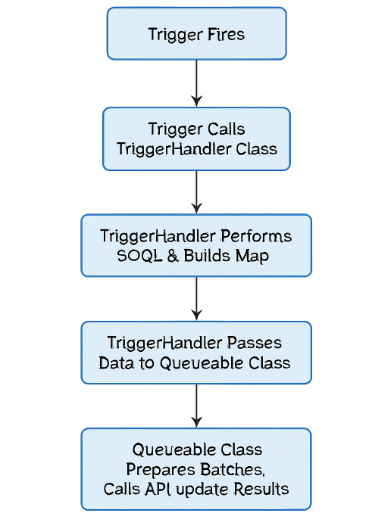
Data Flow:
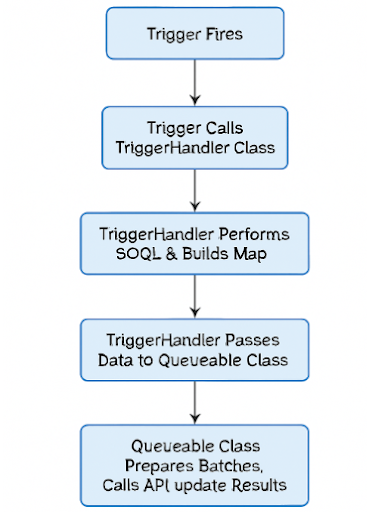
- User inserts/updates a Lead/Contact.
- Trigger fires and enqueues a Queueable Job.
- Job dynamically builds payload from metadata.
- RDN APIs are called (Basic Utility, Categorization, Lookup, etc.).
- Response mapped back to Salesforce fields.
- Records updated asynchronously.
4. Installation & Configuration
Step 1 – Install Package
Navigate to the unmanaged package link:
/packaging/installPackage.apexp?p0=xxxxxxxxxxxxxx
Installed Packaged Details
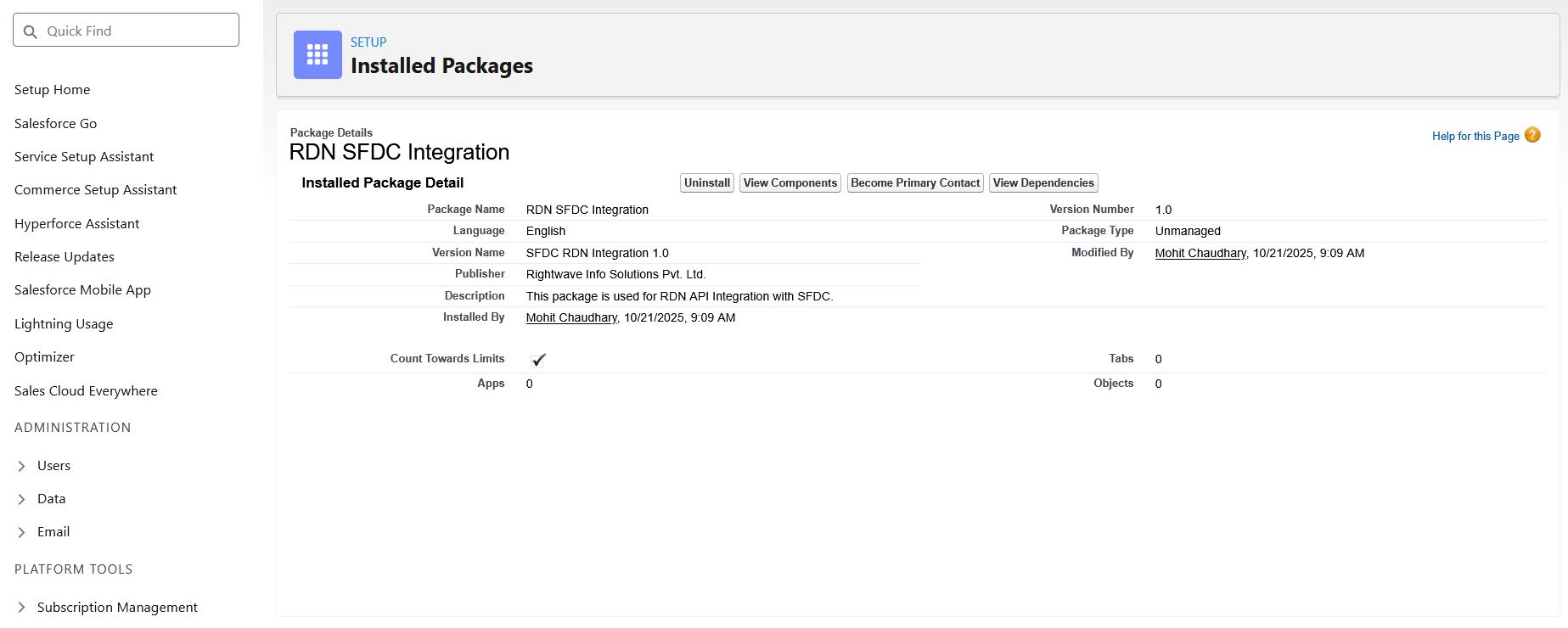
MetaData Components included in package:
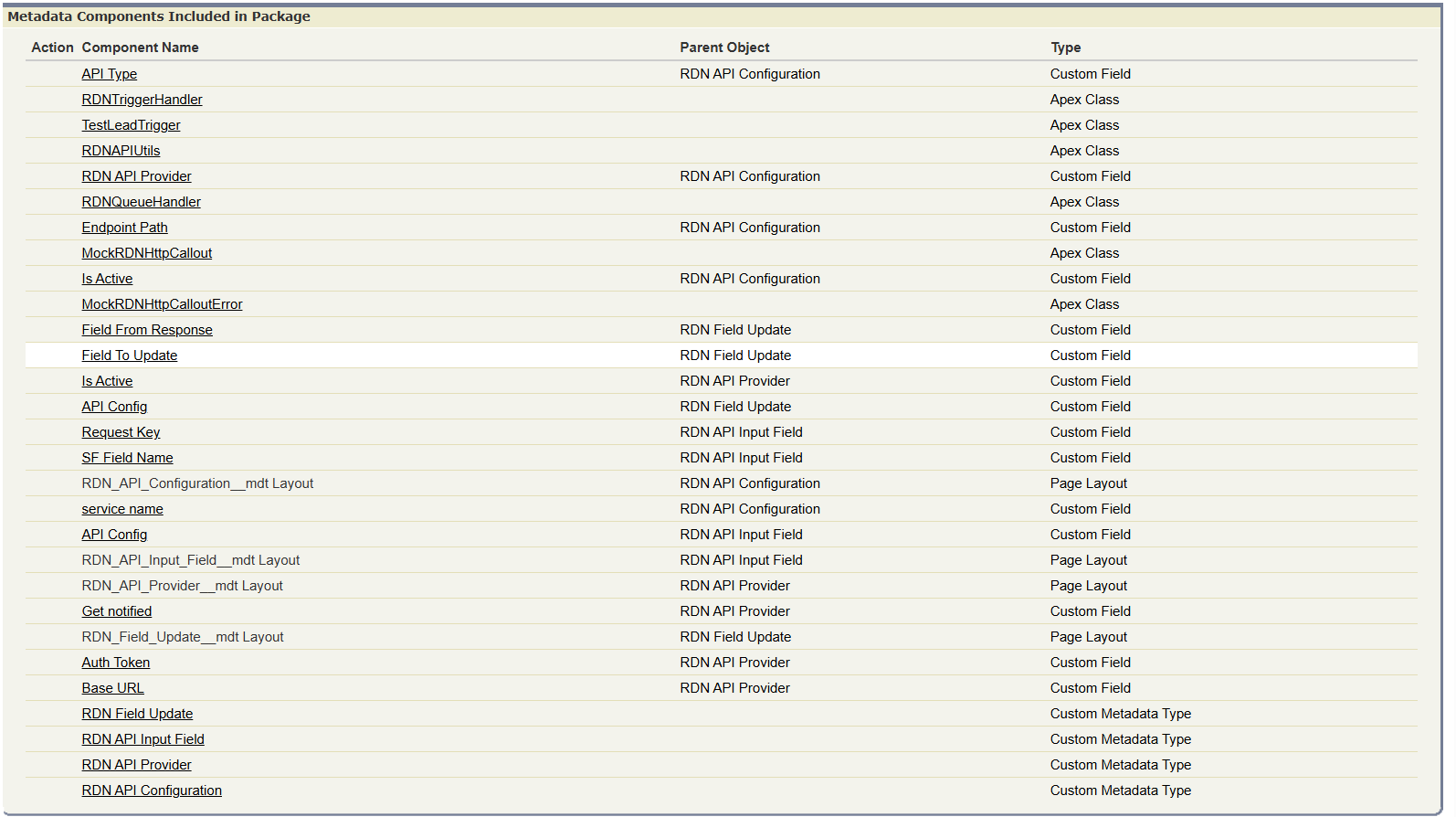
Post-installation Components:
- Custom Metadata Types (CMDTs)
- Apex Classes (RDNTriggerHandler, RDNAPIUtils, Queueable Jobs)
- Example Triggers
Step 2 – Metadata Configuration
The integration is completely configurable through CMDTs.
Create and configure the following Custom Meta DataTypes:
1 RDN API Configuration
2 RDN API Input Field
3 RDN API Provider
4 RDN Field Update
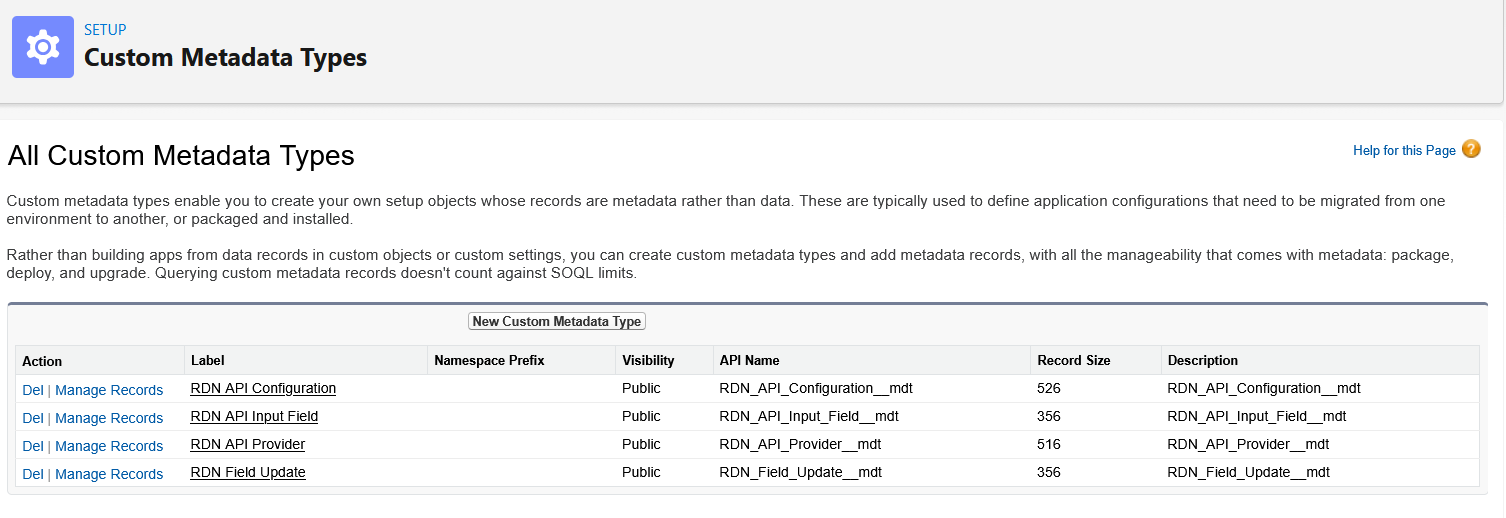
1.1 RDN API Configuration
Purpose:
Defines which Salesforce object to monitor and how.
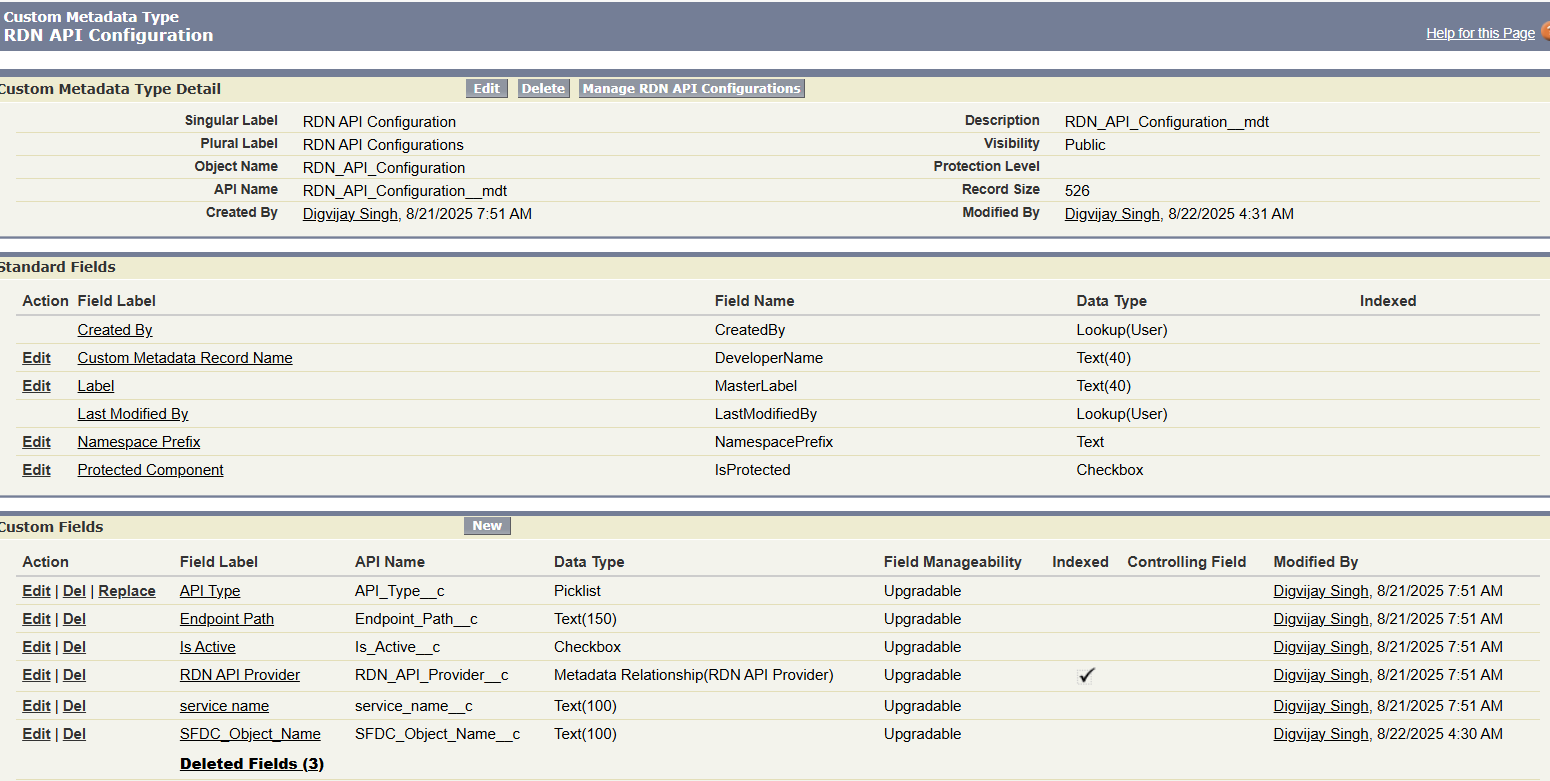
1.2 Manage RDN API Configuration (Lead and Contact)

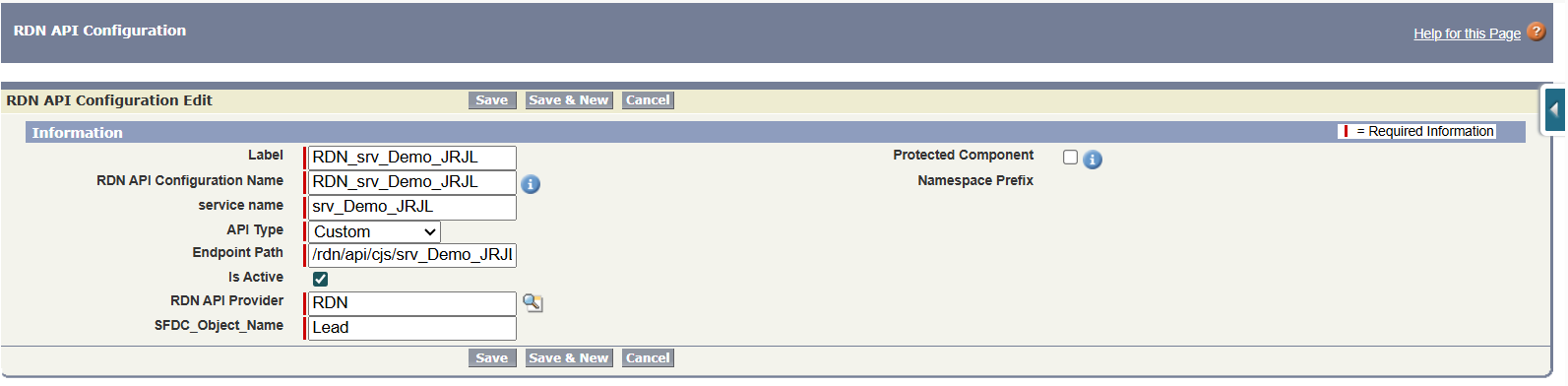
1.3 Edit Label (Lead)
1.4 Edit Label (Contact)
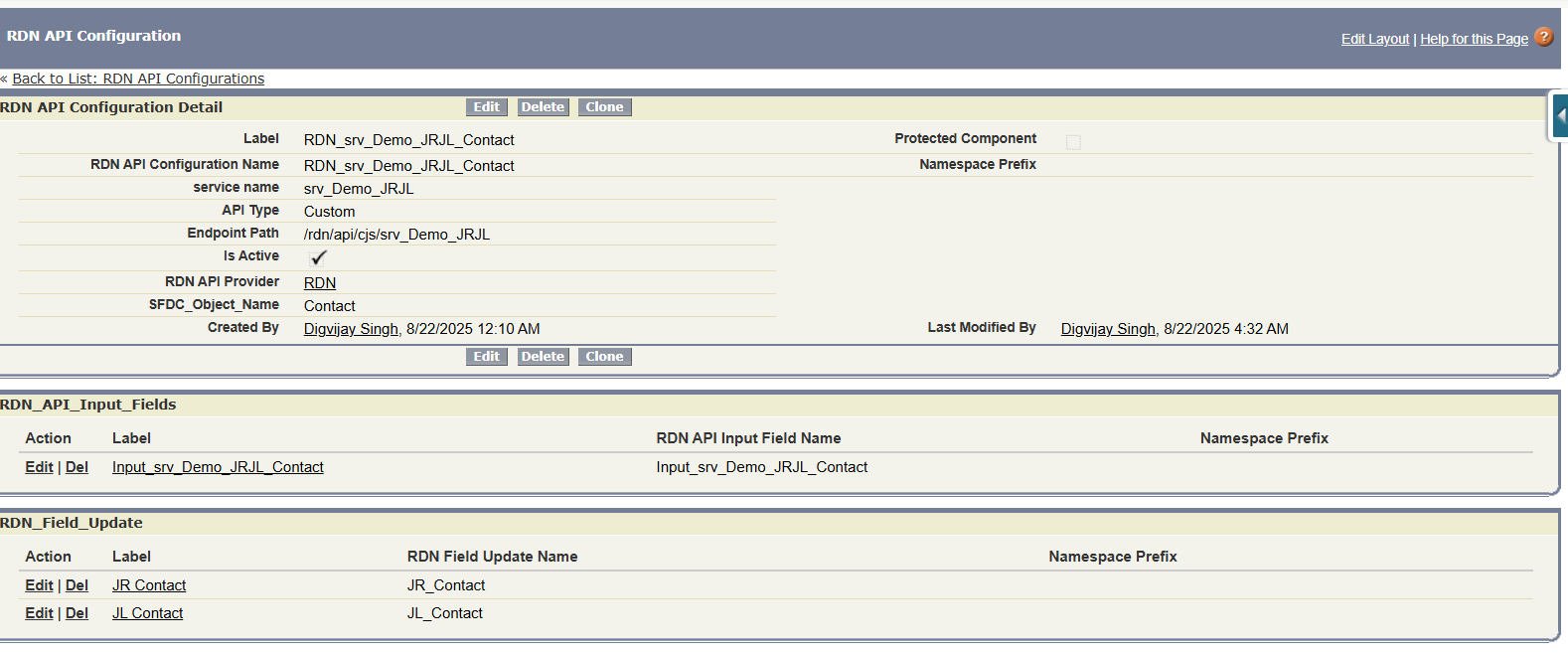
| Field Name | Description | Type |
| Service name | Name of the RDN service | text |
| API Type | Picklist: Basic, Categorization, Lookup, Custom | Dropdown |
| Endpoint Path | instead of a full URL, like /addScore | Text |
| SFDC_Object_Name | Object Name | Text |
| Is Active? | Is the service active | Checkbox |
| RDN API Provider | Reference of RDN_API_Provider__mdt | Lookup |
| Run_in_Batch__c | RUN this configuration when called from manual execution.RDNAPIUtils.runCallBatch(‘lead’,query); | Checkbox |
2.1 RDN API Input Field
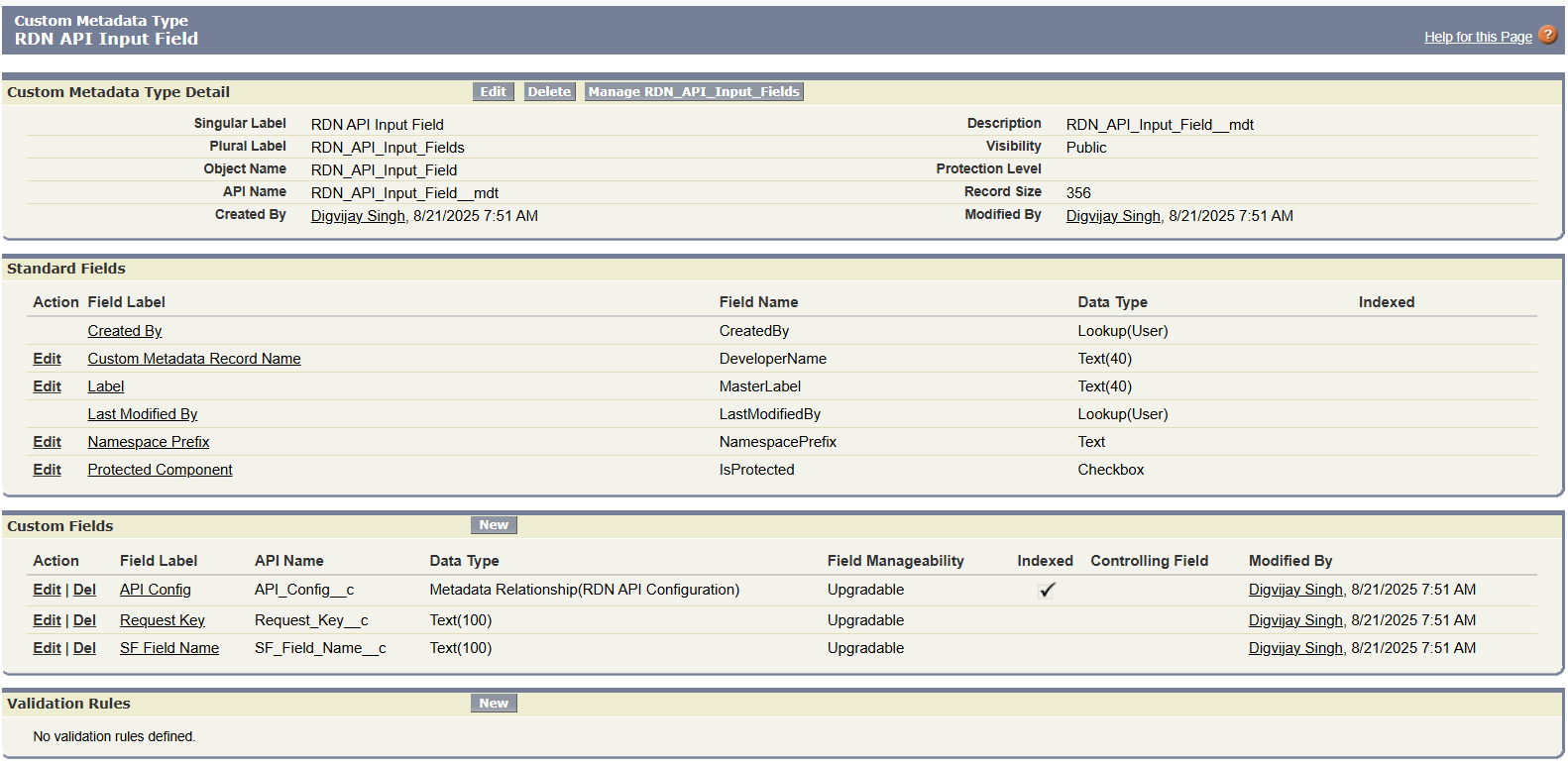
2.2 Manage API Input Field

2.3 Edit Service 1 (Lead) (Not Applicable for memoryBlue)

| Field Name | Description |
| API Config | Id of RDN_API_Configuration__mdt |
| SF_Field_Name | API name of the Salesforce field |
| Request_Key__c | Key in JSON payload |
2.4 Edit Service 2 (Contact)
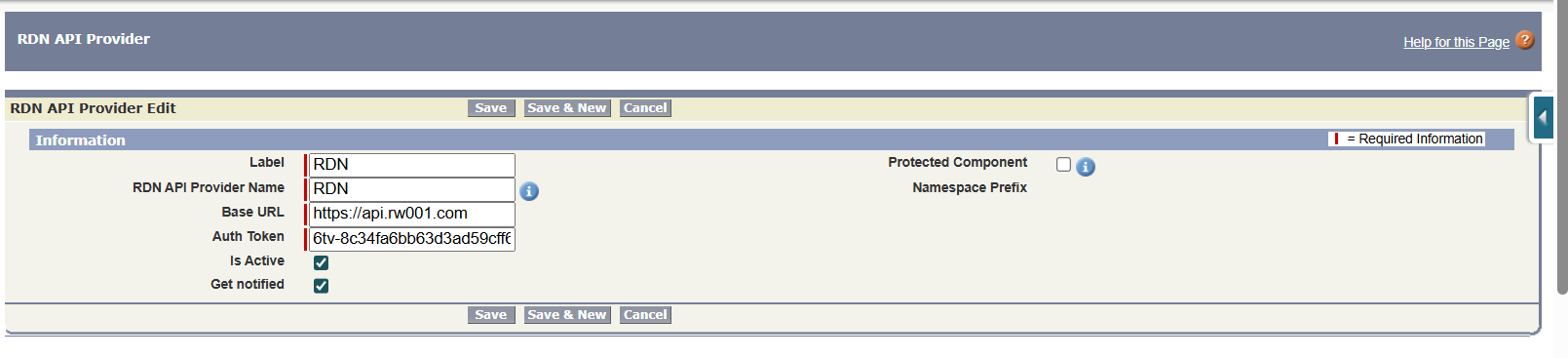
2.5 RDN API Provider
| Field Name | Description |
| Base URL | Domain |
| Auth Token | Auth Token which has to be included in header |
| Get notified | Use for send email in case of exception. |
| Is Active | Flag to turn off RDN |
2.5 Manage API Provider
2.6 Edit
2.7 API Field Update
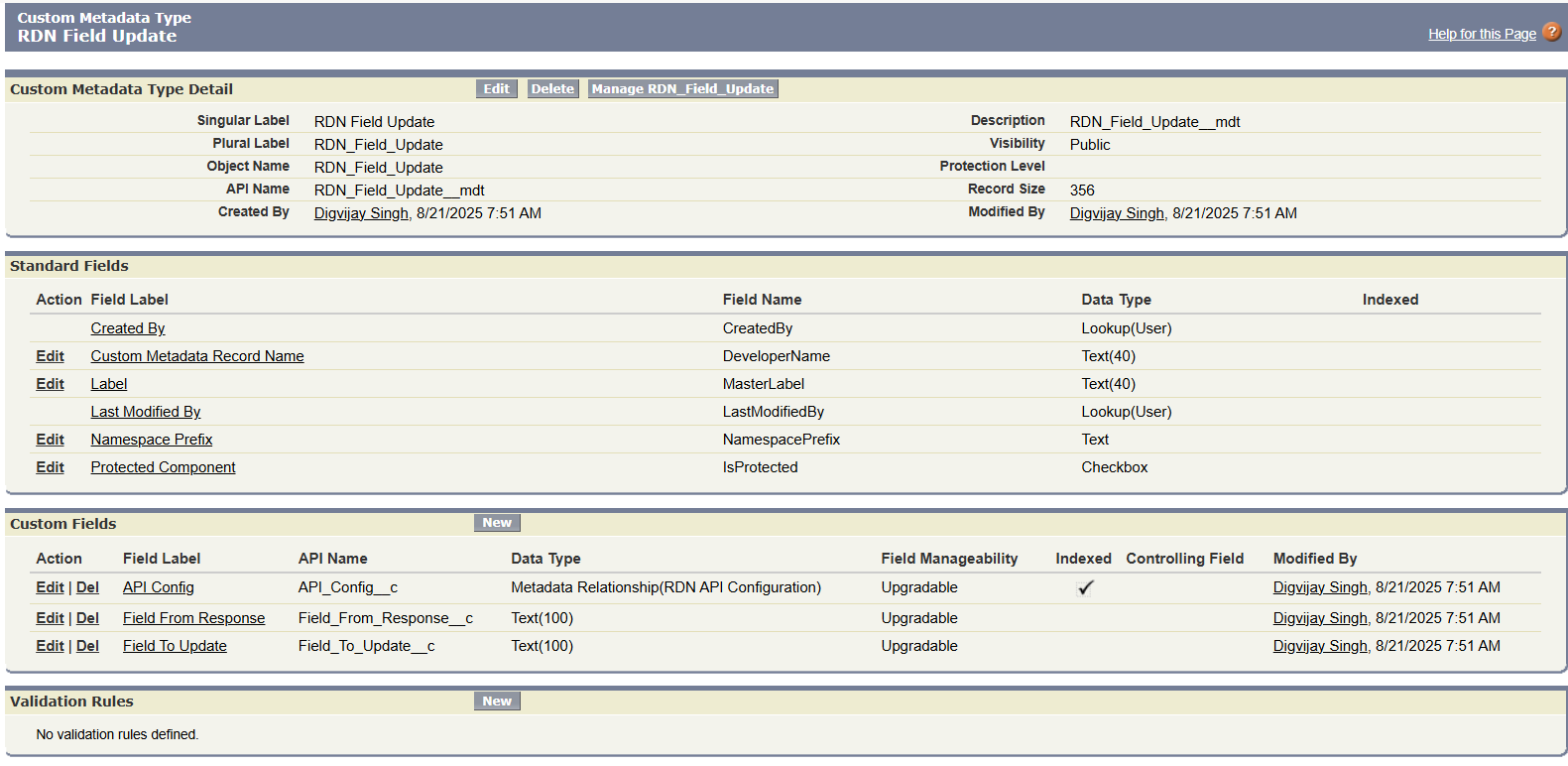
| Field Name | Description |
| API_Config__c | Id of RDN_API_Configuration__mdt |
| SF_Field_Name__c | API name of the Salesforce field |
| Request_Key__c | Key in JSON payload |
3. Manage RDN API Field Update

3. Manage RDN API Field Update
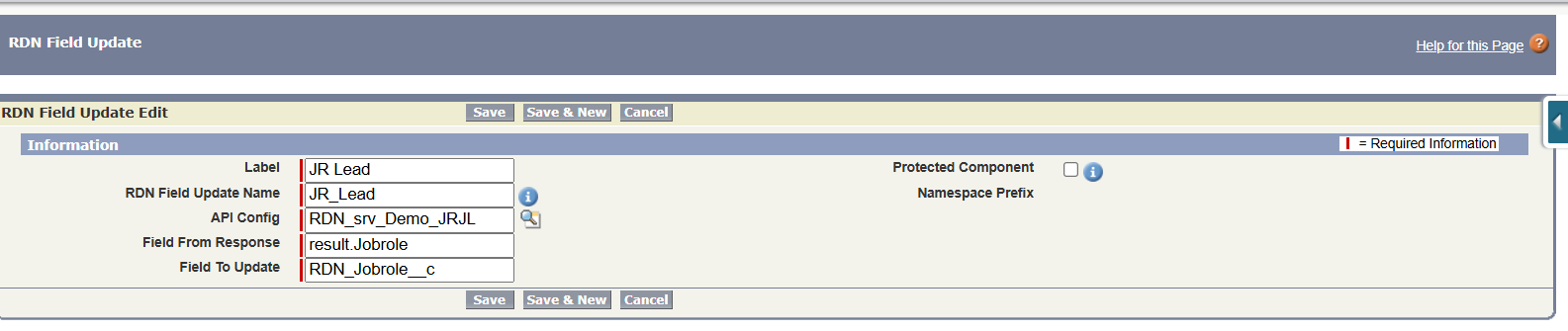
3.2 Management Level Lead
3.3 Job Role Contact
3.4 Job Role Lead
Step 3 – Update Salesforce Triggers
Trigger Flow:
Trigger Example:
Add to objects like Lead, Contact, etc.
trigger LeadTrigger on Lead (after insert, after update) {
if (Trigger.isAfter) {
RDNTriggerHandler.handleTrigger(Trigger.new, Trigger.oldMap);
}
}
trigger ContactTrigger on Contact (after insert, after update) {
if (Trigger.isAfter) {
RDNTriggerHandler.handleTrigger(Trigger.new, Trigger.oldMap);
}
}
Please note that user has to write below lines in trigger.
if (Trigger.isAfter) {
RDNTriggerHandler.handleTrigger(Trigger.new, Trigger.oldMap);
}
The old map and the new list are compared to identify any changes in the fields. An HTTP call will be triggered only if a change is detected.
Step 4 – Allow Remote Site Access
To use the solution in the SFDC instance, the user has to provide access to remote sites.
Steps to Add a Remote Site in Salesforce
- Log in to Salesforce:
Go to https://login.salesforce.com (or your org’s login page) and log in with your credentials.
- Navigate to Setup:
Click the gear icon (⚙️) at the top right.
- Select Setup.
- Search for “Remote Site Settings”:
- In the Quick Find box on the left sidebar, type Remote Site Settings.
- Click on Remote Site Settings under the Security section.
- Create a New Remote Site:
Click the “New Remote Site” button.
- Fill Out the Remote Site Details:
Remote Site Name: Give it a unique name (no spaces, e.g., My_API_Site).
Remote Site URL: Enter the base URL of the external service (e.g., https://api.example.com).
- Do not include trailing slashes or paths like /v1/endpoint. Just the base domain.
- Description (optional): Add a meaningful description.
- Disable Protocol Security: Leave unchecked unless you’re working with an old HTTP endpoint (not recommended).
- Active: Keep this checkbox checked to allow callouts to this URL.
- Save the Remote Site:
Click Save.
5. Error Handling
When an error is encountered, an alert email is sent to the RightWave (RW) team and the RDN Support team through the RDN API. Notifications are triggered under the following conditions:
- API is inactive
- Processing Unit (PU) limits are exceeded
- Invalid or expired authentication token
- Incorrect or missing metadata configuration
- Unexpected failure in the process execution
Error code | Explanation | Flow Terminated |
Q001, QB01, DB01 | unhandled processing exception | YES |
Q002, QB02, DB02 | API endpoint not found (404) | NO |
Q003, QB03, DB03 | API error with specific HTTP status | NO |
Q004, QB04, DB04 | RDN response indicates failure | NO |
Q006, QB06, DB06 | Invalid input field error | NO |
Q007, QB07, DB07 | Inner exception during processing | NO |
Q008, QB08, DB08 | Retry record save error | NO |
Txx0 | Input field error in trigger when try to detect change. | NO |
6. Validation & Testing
- Test Data: Create sample Leads with Job Title, Country, Email.
- Expected Results: Job Title categorized → Job Role & Management Level fields populated.
- Verify: Check Salesforce record after API run.
7. Troubleshooting
Common Issues:
- Invalid Token: Verify Auth_Token__c in metadata.
- Inactive Service: Check Is_Active__c flag in configuration.
- API Limit Exceeded: Retry after reset window.
- Wrong Mappings: Ensure SFDC fields match API payload keys.
Logs & Debugging:
- Check RDN logs.
- Use Salesforce Debug Logs (set Apex logging level = FINE).
Rollback Steps:
- Deactivate CMDT records.
- Remove triggers temporarily.
8. Security & Compliance
- Authentication: Secure Auth Token.
- Data Access: Only mapped fields are shared with RDN APIs.
- PII Handling: Sensitive fields (Email, Phone, Name) only processed via secure HTTPS.
9. Limits & Performance
Salesforce Governor Limits:
- Max 100 callouts per transaction
- Queueable job chaining for >98 records
- Batch Size: Default 98, configurable in metadata.
- Retry Behavior: Failed jobs retried based on the SFDC retry mechanism
10. Support & Escalation
- Level 1: Salesforce Admins check logs & metadata.
- Level 2: RDN Team (RightWave Inc.)