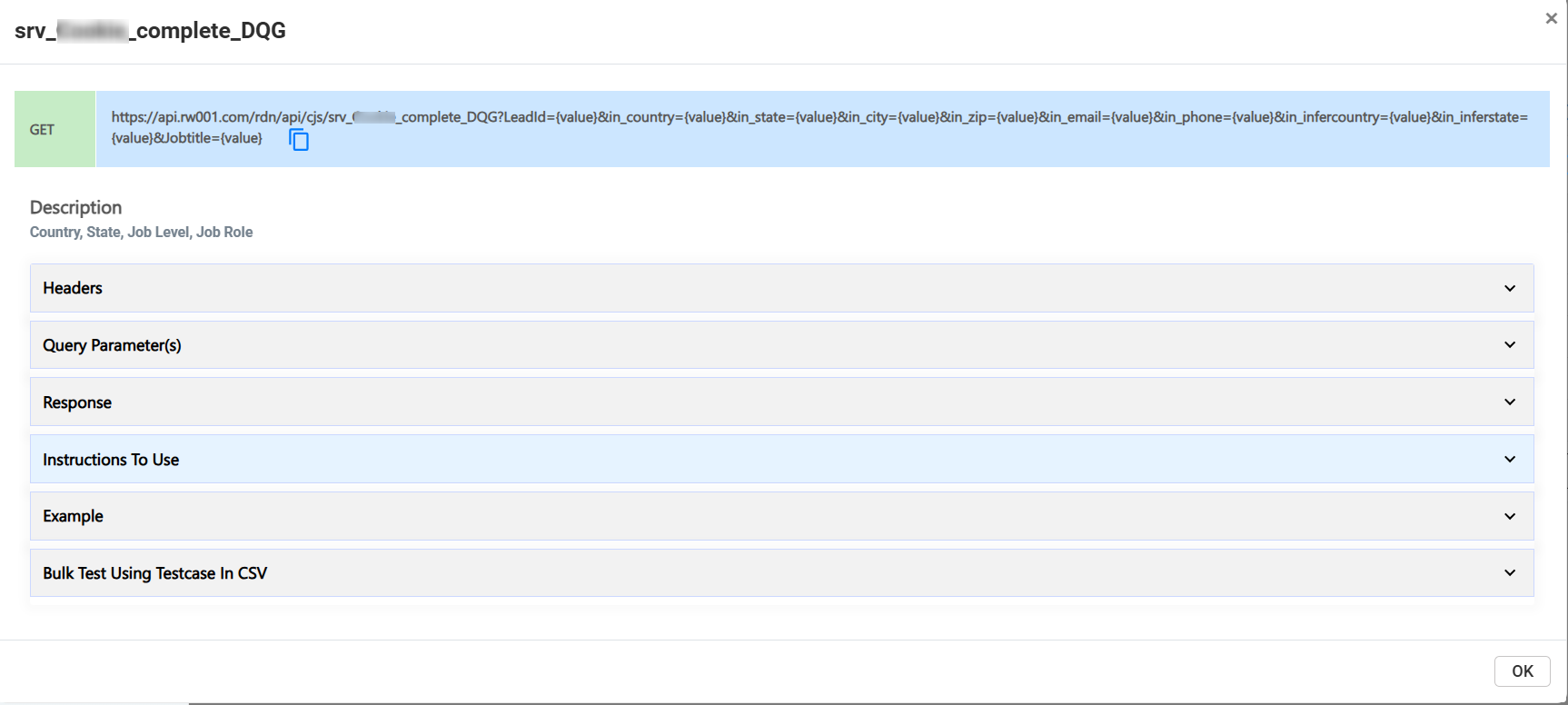
RDN Custom Service
Custom services allow users to create customized REST services by implementing their own business logic with JavaScript. To use these services effectively, you need a basic understanding of JavaScript. This includes familiarity with the language’s syntax, functions, and key concepts.
It’s also important to follow JavaScript best practices when coding to ensure that the service is efficient, secure, and maintainable. Writing clean, optimized, and error-free code will help create a smooth and effective REST service.
To get started with the Custom service, please follow the instructions below:
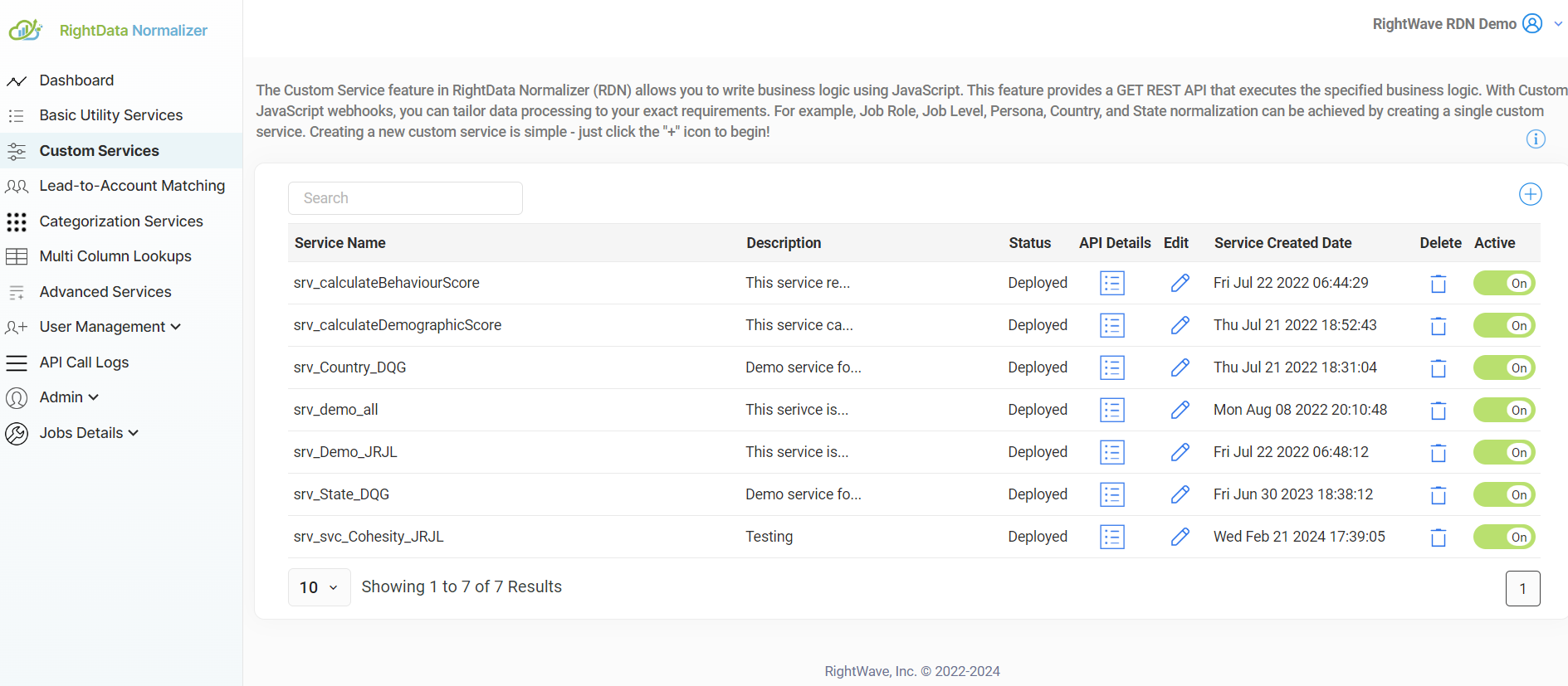
- Click on ‘+’ icon to create a new Custom service.
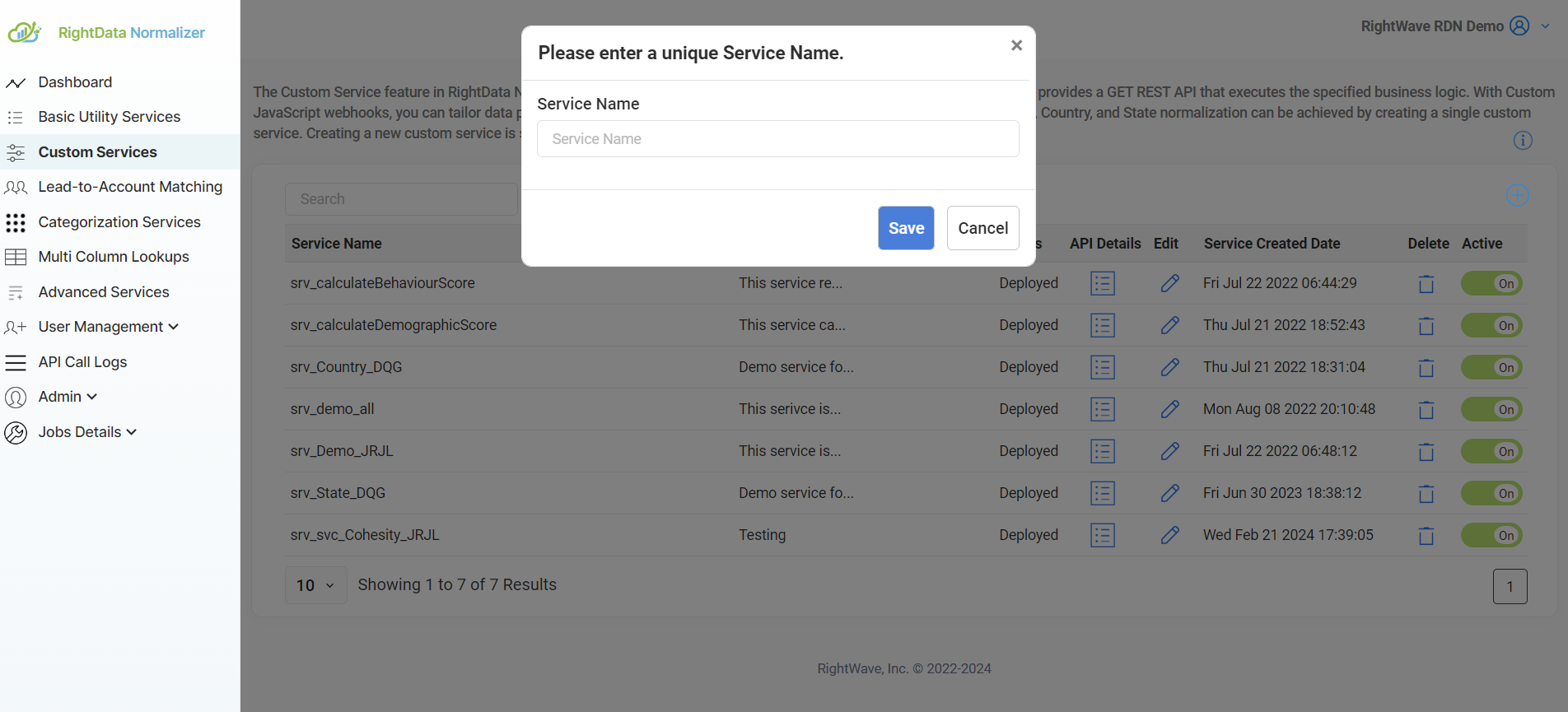
2. Enter the Service Name and click on the “Save” button to create a service.
3. After entering and saving the service name, proceed to select the script type. Choose either Draft Script or Production Script based on your requirements. The Draft Script will be selected by default, while the Production Script will be selected once the service is deployed to production. Select the appropriate radio button to make your choice.
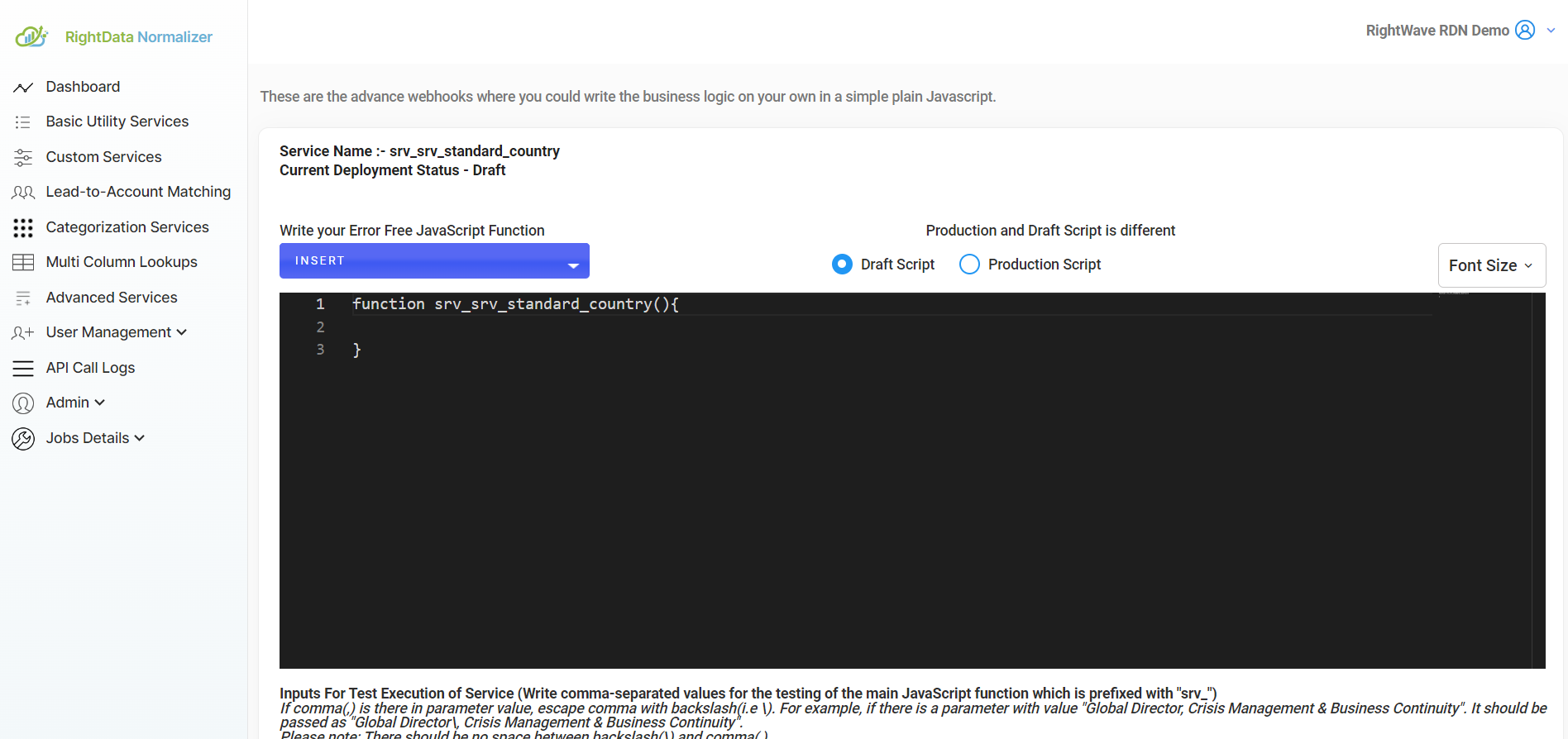
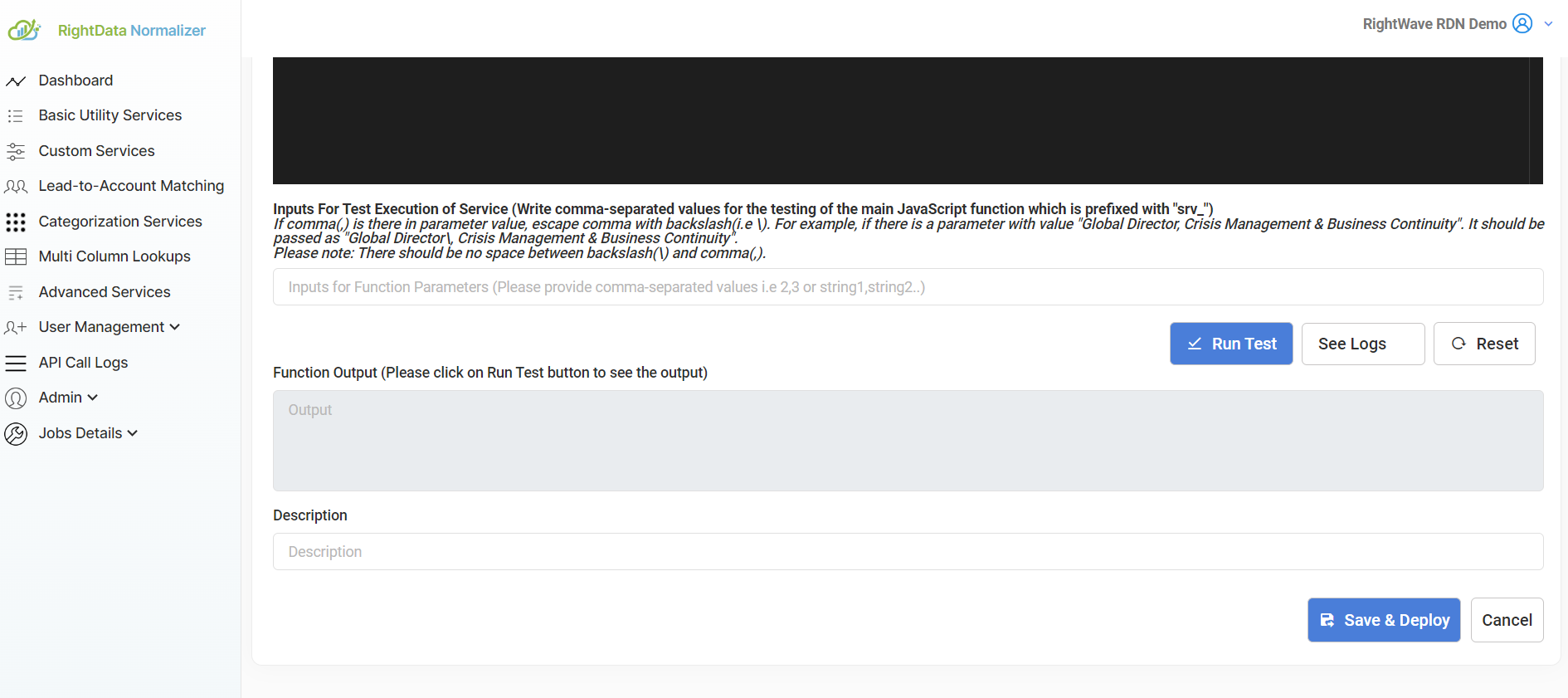
3.1 Draft Script: The Draft Script allows you to make edits and modifications to your code. It is typically used during development or testing phases and may contain unfinished or experimental changes. As such, it may include errors in the code since updates are still being made. You need to select Draft mode to make any changes to the Production script. Once you have made and tested the necessary changes, you will need to redeploy the script to the production environment.
3.2 Production Script: The Production Script contains the finalized, error-free code that runs in the production environment. Once deployed, the Production Script cannot be modified directly, ensuring stability and reliability in the live environment.
3.3 Font Size: To adjust the font size of your script for better readability, use the “Font Size” button.
3.4 Writing a Script for a Custom Service Using the JS Editor
This section provides guidance on how to write and implement a custom service script using the integrated JavaScript (JS) editor. Leverage the editor to define your business logic, interact with external systems, and customize the behavior of your service efficiently and securely.
Main Function for Custom Services
The main function serves as the entry point for the custom service, where the execution flow begins. It is essential that the name of the main function be prefixed with “srv_”. When you create a custom service, the system automatically adds the “srv_” prefix to the function name, so there is no need to manually add it. Additionally, the name of the main function must be unique across the instance. For example, if you create a main function named srv_addScore(), you cannot reuse the name srv_addScore in any other custom service within the same instance.
Input Arguments All input arguments to the main function are treated as strings by default. If you intend to perform any numeric operations, you must first convert these string arguments into numbers. For instance, you can use the parseInt() method to convert integer strings before performing arithmetic operations.
Code Modularity If your business logic is relatively simple (e.g., no more than 10 lines of code), you can write the entire logic within the main function. However, if your logic is more complex or needs to be more organized, you can create helper functions to modularize the code. These helper functions can then be invoked from the main function to maintain clean and reusable code.
Return Types of the Main Function
1. Returning a Single Value:
If you want the main function to return a single value, use the return statement followed by the value. For example:
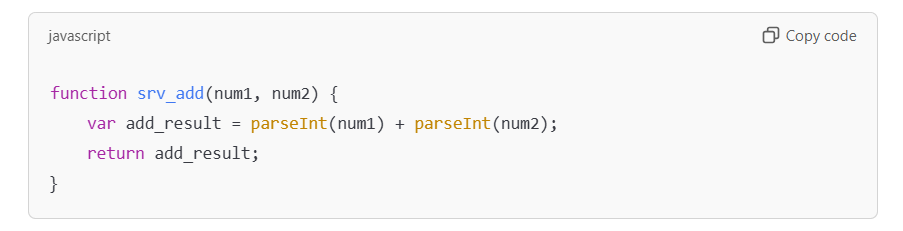
In this case, when the function srv_add(num1, num2) is called with the arguments 3 and 2, the output will be 5.
- Returning Multiple Values:
If you need to return more than one value, you can package the output into a map (object) and return it. For example:
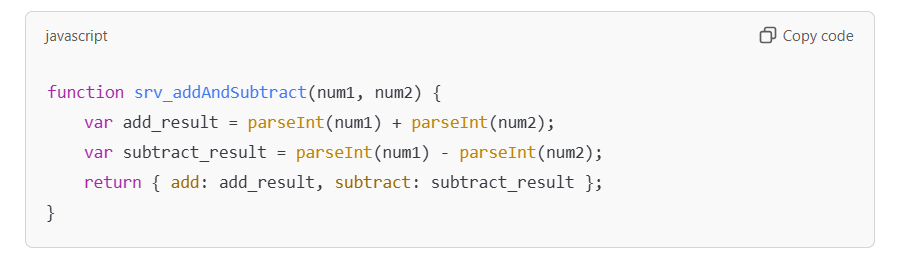
If the function srv_addAndSubtract(num1, num2) is called with the arguments 3 and 2, the returned output will be:

This approach ensures that the custom service’s logic is clear, concise, and properly modular, allowing for efficient implementation and maintenance of business rules.
RDN Functions
RDN provides various built-in functions that can be utilized as helper functions in custom services. These functions are categorized into two types: Service Functions and Utility Functions.
4.1 Service Functions
These functions are available in RDN as REST services and can be used directly within your custom service logic. Service functions cover a range of common use cases, including basic operations, data lookups, categorization, and lead-to-account matching. You can find these functions via the INSERT Widget in the JS editor, which helps you insert the function calling code at the cursor position, along with an output template in comments that you can delete later.
4.1.1 Basic Services
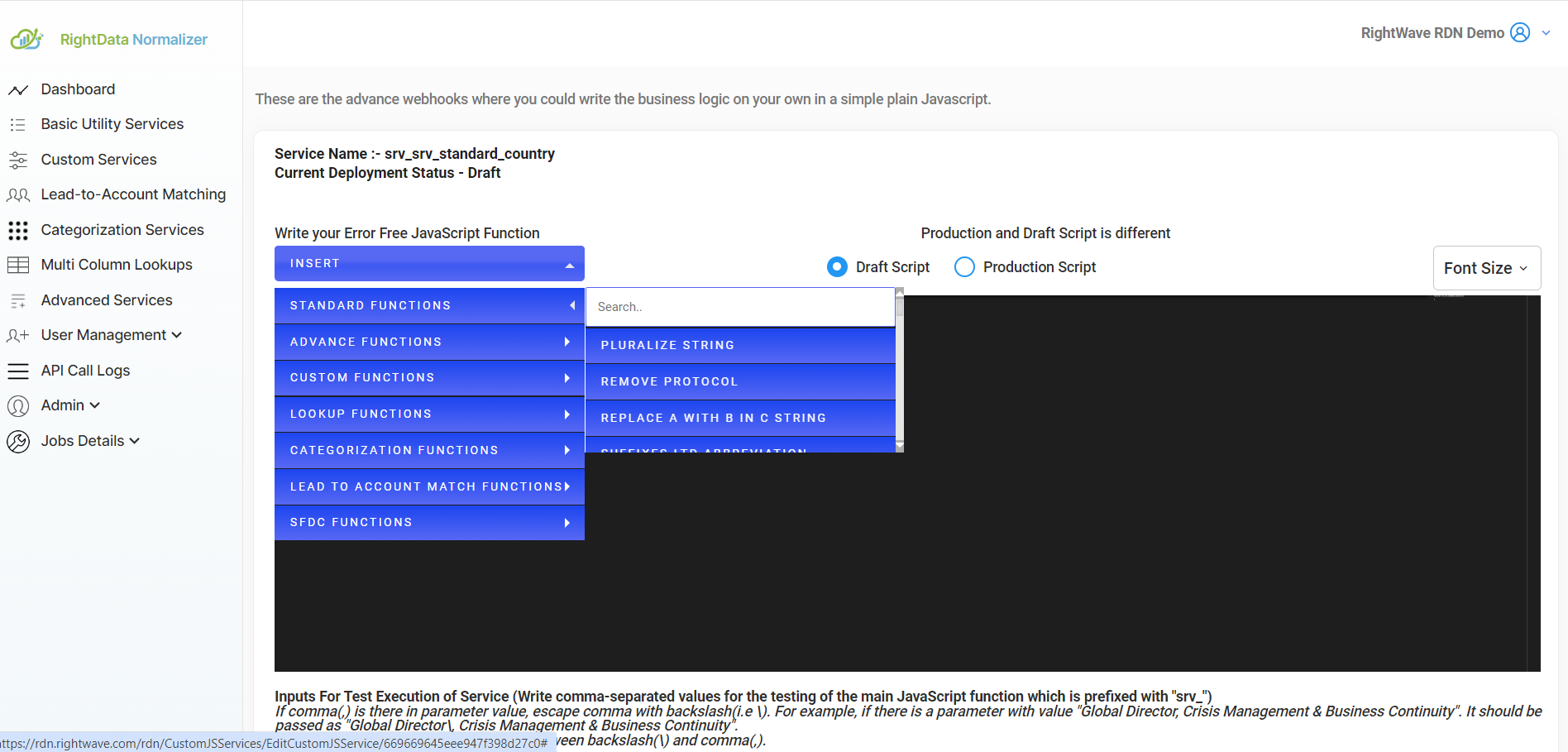
RDN provides a set of standard functions, referred to as Basic Services, that can be integrated into your custom services. These functions handle common operations that can be reused across various services. More details on each individual Basic Service can be found in the Basic Services Help Section.
To insert a basic service function into your code, use the INSERT → STANDARD FUNCTIONS → {Function Name} widget.
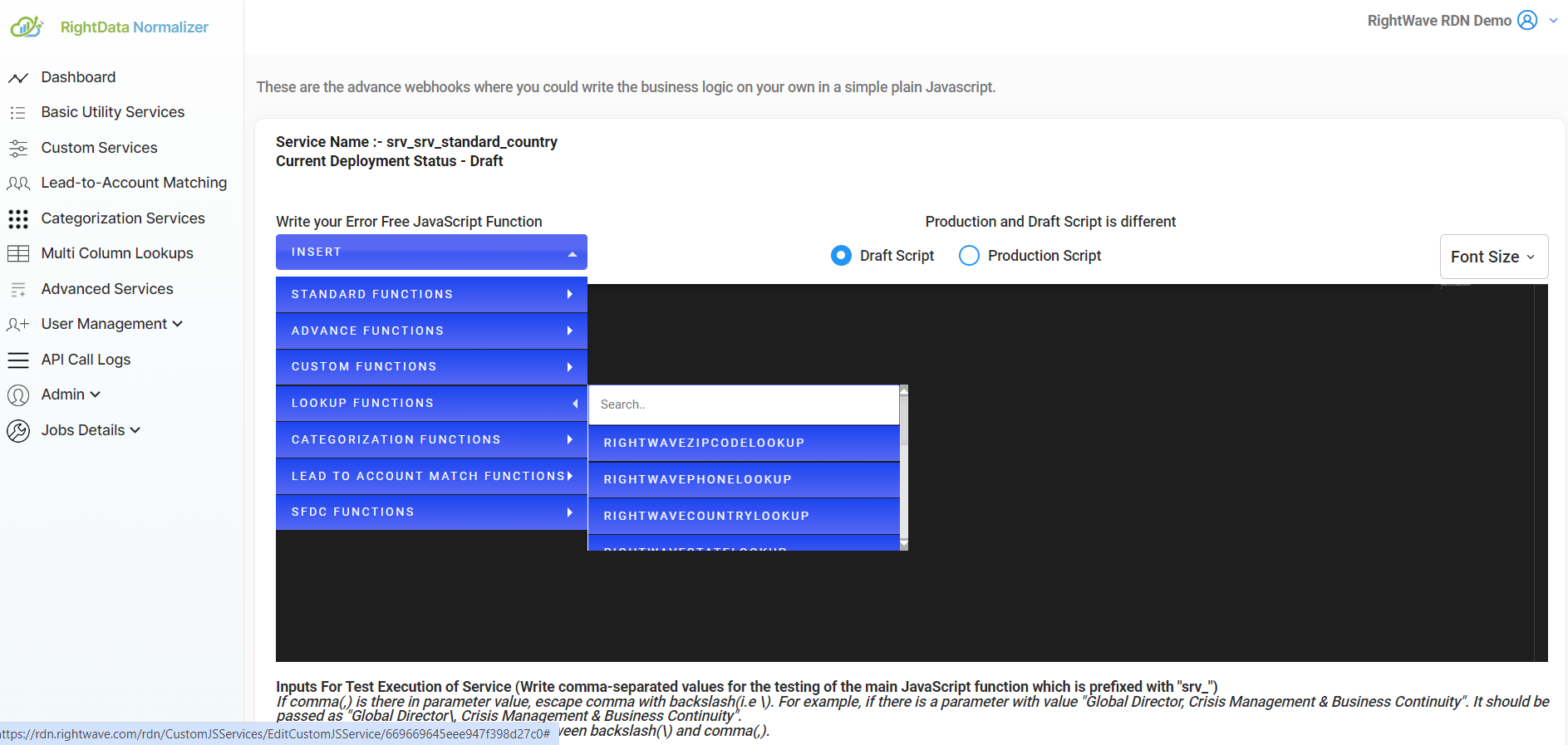
4.1.2 Multi-Column Lookups
RDN provides both Standard and Custom Lookups for retrieving data from multiple columns. These lookup functions are available as service functions and can be inserted into your code in the same manner as basic services. For more information, refer to the Multi-Column Lookup Help Section.
To add a lookup function to your code, use the INSERT → LOOKUP FUNCTIONS → {Function Name} widget.
4.1.3 Categorization Service
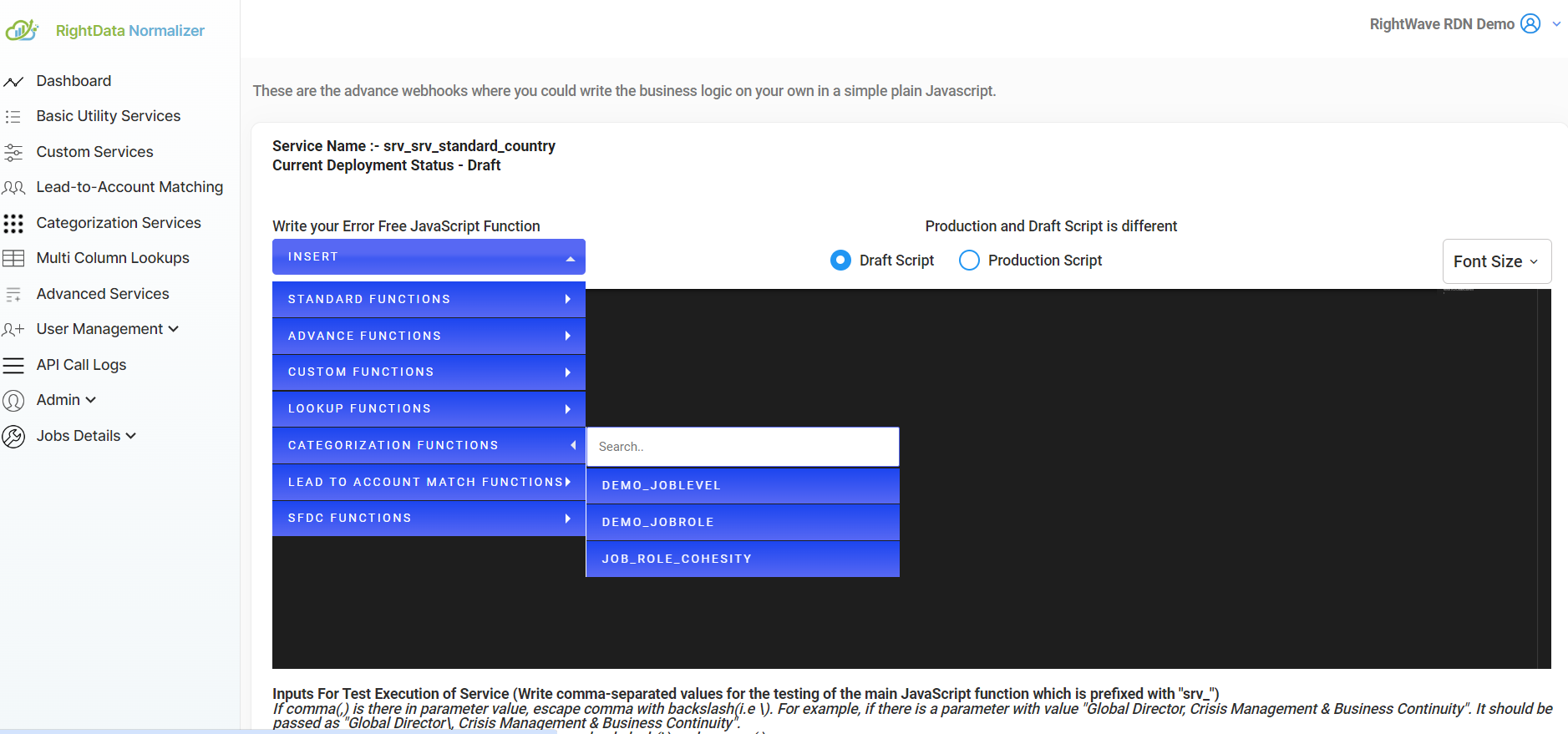
RDN offers a Categorization Service to categorize data based on specific criteria. This service can be particularly useful for classifying large datasets. Details on how to use the Categorization Service can be found in the relevant help section.
To integrate this service, use the INSERT → CATEGORIZATION FUNCTIONS → {Function Name} widget.
4.1.4 Lead to Account Match Service
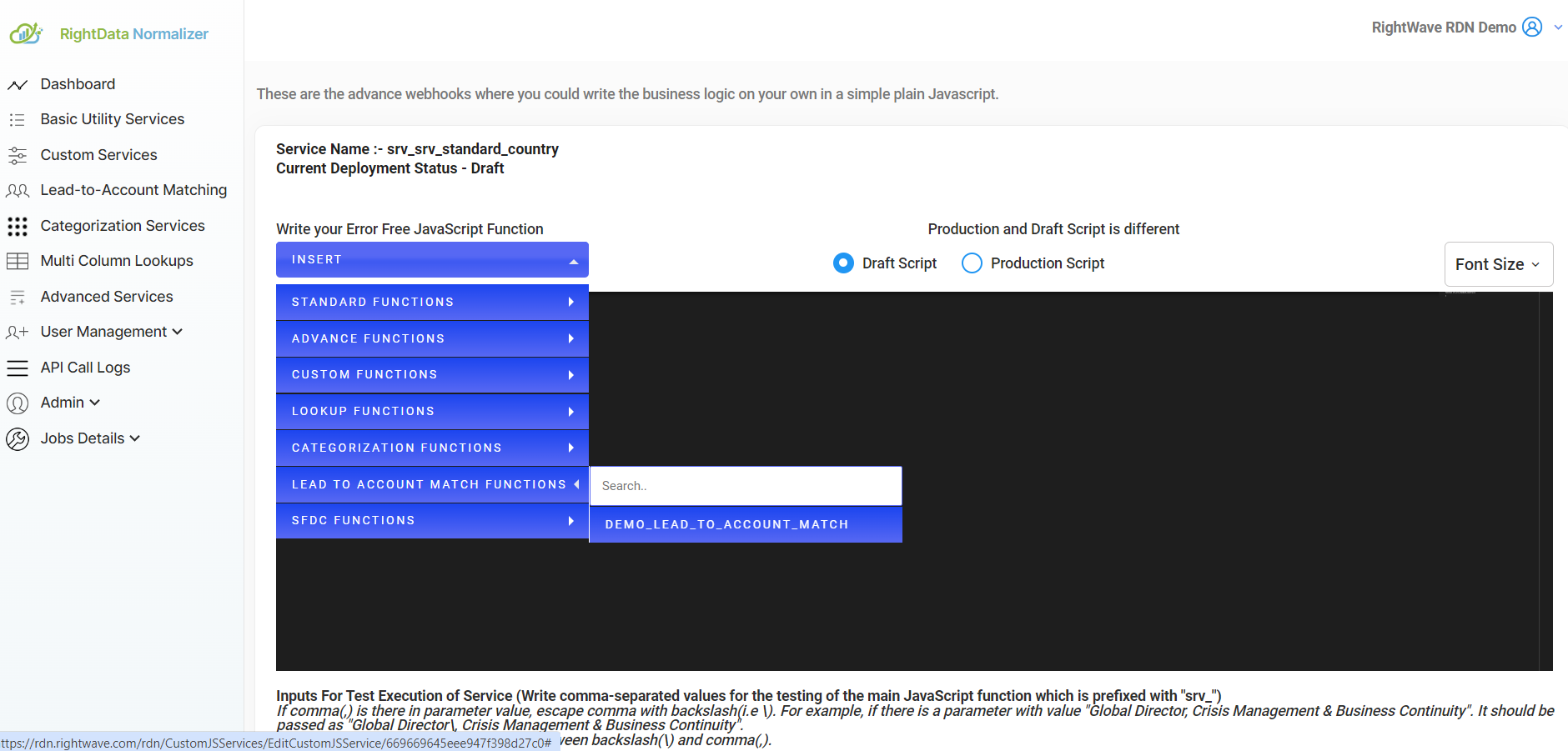
The Lead to Account Match Service allows you to match leads with accounts in your CRM or data system. For more details on this service, consult the Lead to Account Match Help Section.
You can insert this function into your code by using the INSERT → LEAD TO ACCOUNT MATCH FUNCTIONS → {Function Name} widget.
Utility Functions: These are the utility functions that you can call as Javascript functions. Following are the utility functions RDN provides:
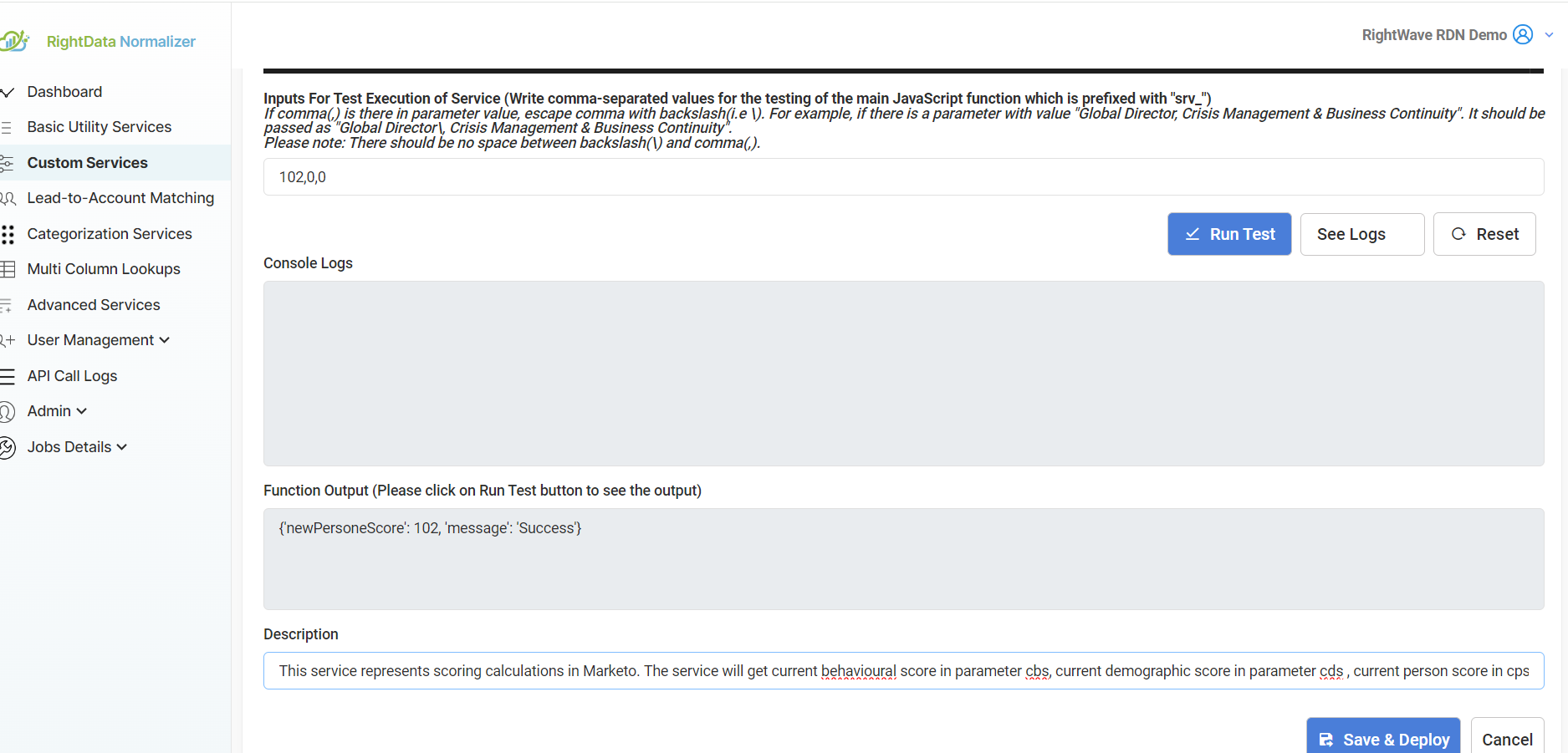
- Log Functions: RDN offers logging capabilities for debugging JavaScript logic. You can utilize the rdn.debug.log() function, which accepts a string as input and displays the string’s value in the Log area. It’s important to emphasize that these logs are exclusively accessible for troubleshooting and testing during the development of Custom Service.
Suppose you want to print the value of a variable named “country”.
Let country = “India”;
rdn.log.debug(‘Value of country is ‘’+ country);
If you want to print a JSON then you have to convert it first to String by using JSON.stringify()
For example, you have a JSON
const obj = {name: “John”, age: 30, city: “New York”};
Use the JavaScript function JSON.stringify() to convert it into a string.
const myJSONInString = JSON.stringify(obj);
rdn.log.debug(myJSONInString);
4.2 Utility Functions
In addition to service functions, RDN provides a set of utility functions that can be invoked directly from JavaScript. These utility functions serve specific purposes such as logging, making external API calls, and more.
4.2.1 Log Functions
RDN provides logging capabilities through the rdn.debug.log() function, which can be used for debugging JavaScript logic. This function outputs the log message to the Log area and is particularly useful during development and testing of custom services. Note that logs are only accessible for troubleshooting and testing purposes.
For example, to log the value of a variable:

let country = “India”;
rdn.log.debug(‘Value of country is ‘ + country);
To log a JSON object, first convert it to a string using JSON.stringify():
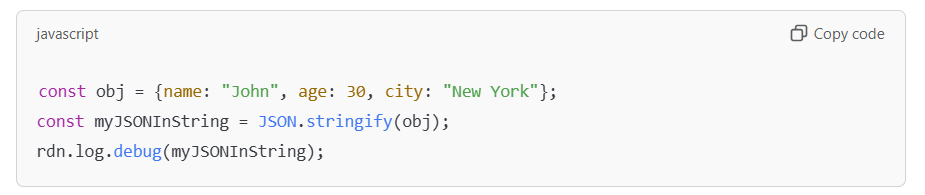
const obj = {name: “John”, age: 30, city: “New York”};
const myJSONInString = JSON.stringify(obj);
rdn.log.debug(myJSONInString);
4.2.2 External API Calling Functions
RDN offers several utility functions for making HTTP API calls. These functions support GET, POST, and PUT methods.
GET Request: Use rdn.call.GET(URL, headers) to make a GET request. You can pass the URL and headers as parameters.
Example:
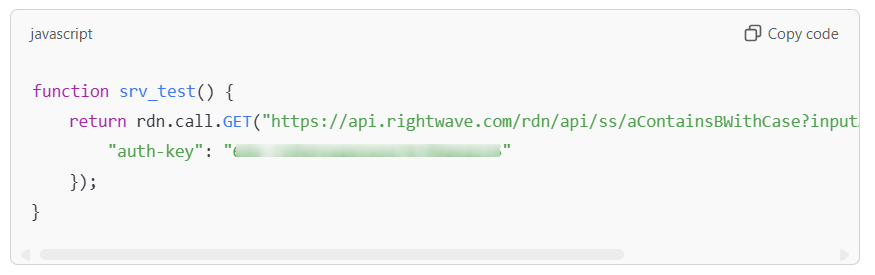
- function srv_test() {
return rdn.call.GET(“https://api.rightwave.com/rdn/api/ss/aContainsBWithCase?inputA=news paper&inputB=paper”, {
“auth-key”: “6da-73de93a2e5a3a787d0262535”
});
}
POST Request: Use rdn.call.POST(URL, headers, payload) to send data via a POST request. Provide the URL, headers, and the payload in the request.
Example:
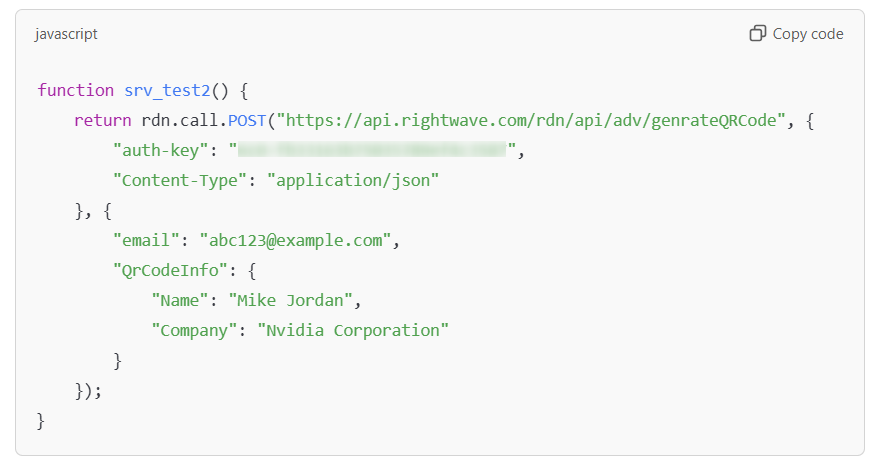
- function srv_test2() {
return rdn.call.POST(“https://api.rightwave.com/rdn/api/adv/genrateQRCode”, {
“auth-key”: “6c0-fb33163b75035789ef4c3587”,
“Content-Type”: “application/json”
}, {
“email”: “abc123@example.com”,
“QrCodeInfo”: {
“Name”: “Mike Jordan”,
“Company”: “Nvidia Corporation”
}
});
}
- PUT Request: Use rdn.call.PUT(URL, headers, payload) for PUT requests. You can pass the URL, headers, and payload into the utility function.
These service and utility functions can be integrated into your custom service to streamline operations, perform data lookups, interact with external systems, and log information for debugging.
5. Restricted Keywords
To ensure the stability, security, and performance of custom services, certain JavaScript keywords and functions are restricted within the custom service scripts. The use of the following keywords is prohibited:
- js_harmful_keyword_list: process, setTimeout, setInterval, async, await, eval, require, import, XMLHttpRequest.
Additionally, it is recommended to avoid using the following JavaScript features in custom services to prevent potential issues:
- Ajax class: Using AJAX for asynchronous requests can lead to issues with service execution.
- API calls: Direct API calls should be avoided unless specifically required for the service.
- Nested functions: Highly nested functions can affect code readability and maintainability.
- Arrow functions: While concise, arrow functions can sometimes cause issues with context binding in certain cases and should be used cautiously.
6. Deployment Status
Custom services in RDN have two primary deployment statuses:
6.1 Draft
The Draft status is assigned when a custom service is first created or in the process of development. During this phase, the service is not yet deployed to production and can still be modified and tested.
6.2 Deployed
The Deployed status indicates that the custom service has been successfully developed, tested, and deployed to production. The service is considered error-free and has passed all necessary test cases.
7. Testing Custom Service
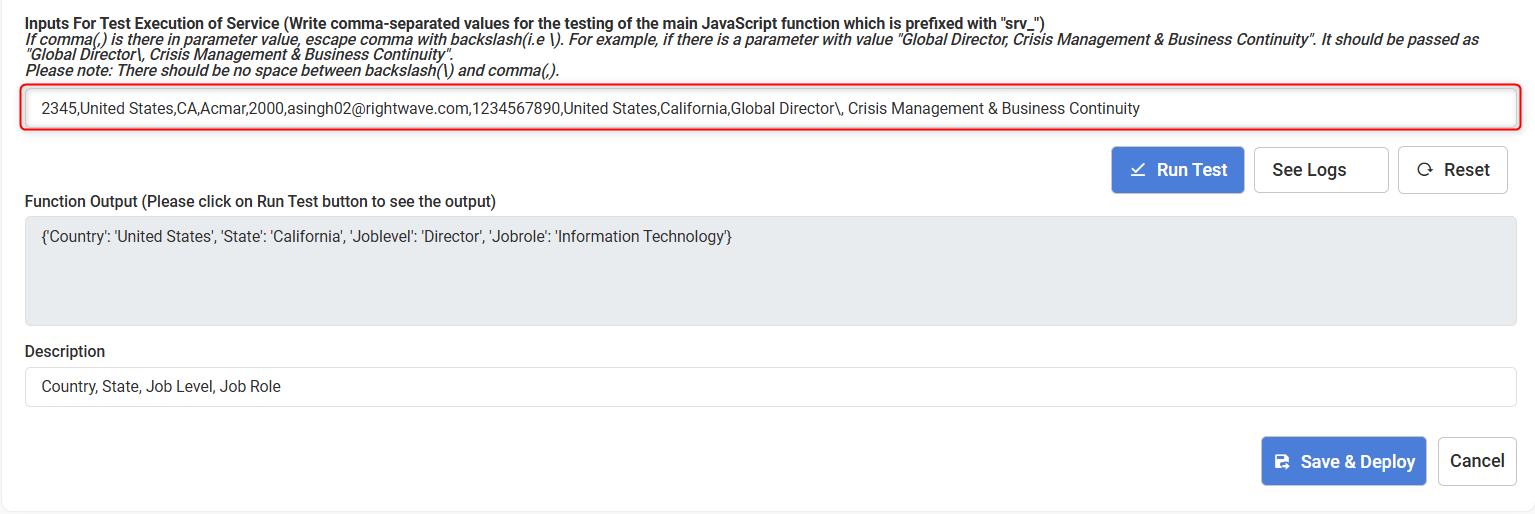
To evaluate the functionality of a custom service, you need to provide the necessary input parameters for testing. These input parameters should be submitted as a comma-separated list. If any parameter value contains a comma, it must be escaped using a backslash (\). For example, a parameter like “Global Director, Crisis Management & Business Continuity” should be written as “Global Director\, Crisis Management & Business Continuity”, ensuring there is no space between the backslash and the comma.
Please note that deploying the script to production is contingent on passing all test cases. When attempting to deploy a custom service, the system will automatically run the test cases, and the service will only be deployed if all tests are successful.
8. Default Service
When you create an RDN account, a default custom service for country standardization, named srv_standardize_country, is automatically provided. This service helps standardize country names and formats within the system, offering an out-of-the-box solution for common use cases related to geographic data processing.