
RDN Categorization Service
RDN Categorization Service offers a real-time platform to transform and normalize data seamlessly. Define custom rules to categorize key data points like Job Role, Level, Division, and Department, aligning your data with business needs.
RDN Categorization Service is an open, real-time execution platform that leverages AI-driven categorization to enhance data transformation and normalization. With intelligent automation, it streamlines the process of organizing key data points such as Job Role, Job Level, Division, and Department. By combining AI-powered insights with customizable rules and prioritization, the service ensures accurate, consistent, and business-aligned data classification, improving efficiency and decision-making.
Key Features:
- Custom Rules Engine: Tailor your categorization process with flexible rules to meet your unique business requirements.
- Real-Time Data Processing: AI models can process large datasets instantly, identifying patterns and anomalies to categorize records dynamically.
- Efficient Data Normalization: AI can detect inconsistencies, map variations to standardized categories, and learn from new data to improve over time.
- Better Campaign Personalization: Utilize organized data to craft more targeted, effective campaigns that resonate with your audience.
Steps to AI-Driven Categorization
- Define Input fields, Categories, and Subcategories: Start by specifying input fields, output categories (e.g., Job Role, Job Level, etc.), and their respective subcategories (if any).
- Create Custom Rules: Use SQL, and JavaScript operators to define rules that match specific criteria in your input data, enhancing accuracy and adaptability.
- Use Natural Language-based AI for Categorization: Leverage natural language AI for intelligent and automated categorization.
- Apply, Transform, and Learn: AI continuously refines results by learning from new inputs, making tasks like deriving Job Roles and Levels from Job Titles seamless and intelligent.
Benefits of RDN AI-Driven Categorization Service
- Enhanced Precision and Control: Leverage AI alongside custom logic to achieve highly accurate and consistent categorization.
- Smart Flexibility: Choose between SQL, JavaScript, and AI-powered categorization for optimal efficiency and ease of use.
- Automated Complexity Handling: AI simplifies even the most complex data transformations, such as mapping diverse job titles to standardized roles and levels.
- Significant Time Savings: Reduce manual effort with AI-powered automation, accelerating categorization while ensuring reliable, real-time results.
Create Categorization Service with AI
To create a Categorization Service within the platform, please follow the steps outlined below:
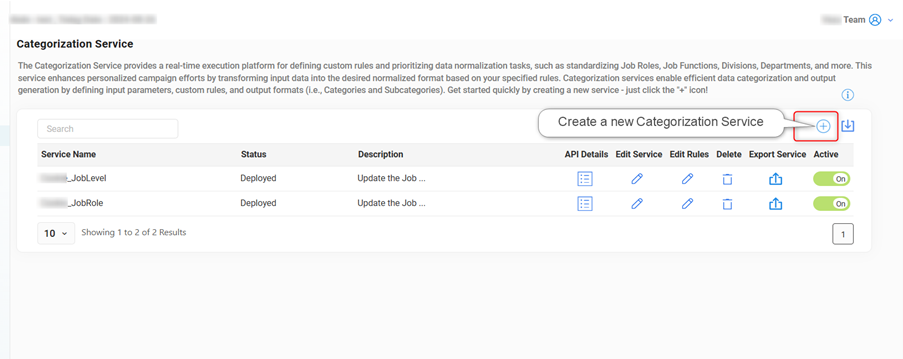
Click on the ‘+’ Icon
Start by clicking the ‘+’ icon to initiate the creation of a new Categorization Service.
- Enter the following required details for the service.
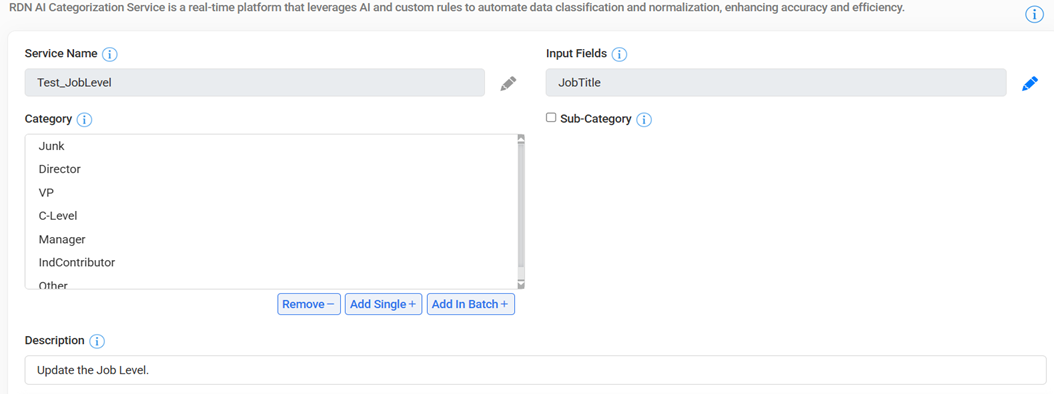
2.1 Service Name– Enter a unique name for your Categorization Service. The service name can contain up to 100 characters. This will serve as the identifier for the service within the platform. For example, JobLevel.
2.2 Input Fields- Define the input fields that will be used in the categorization process. The names of the input fields in the request (query string) must exactly match the names provided here.
For example, if the input field is ‘JobTitle’, the request should contain the parameter ‘jobtitle. ’
If there are multiple input fields, separate them with commas (e.g., jobtitle, name). Please note that each input field name cannot exceed 50 characters.
2.3 Category- Specify the category that will be assigned to the input data when it matches the criteria defined in your custom rules. The category represents the main grouping based on the input. For example, Director, VP, Manager, C Level, Other etc.
You can remove, add a category, and add categories in batch by clicking on Remove, Add Single, and Add in Batch options, respectively.
2.4 Sub Category (Optional)- If you wish to further refine the categorization, you can click on the checkbox and assign a Sub-Category under the main Category. You can remove, add a sub-category, and add sub-categories in batch by clicking on Remove, Add Single, and Add in Batch options, respectively. This step is optional and can be left unchecked if not needed.
2.5 Description- Provide a detailed description of the categorization service you plan to implement. This description will help to clarify the purpose and logic behind the categorization service.
- Use Natural Language-based AI for Categorization
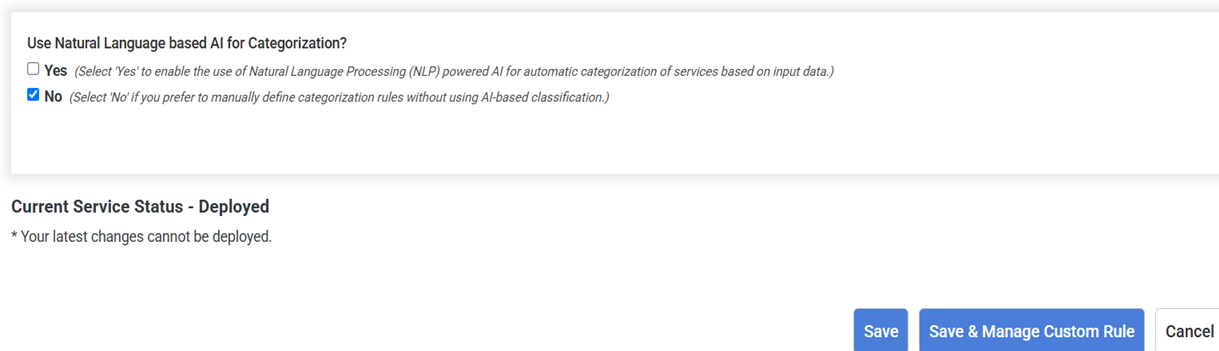
3.1 No– If the user selects the No option, the user can either save the details entered by clicking on the ‘Save’ button or clicking on the ‘Save & Manage Custom Rule’ to define the custom rules for categorization. Please note that at least one Category must be created before you can define any custom rules.
3.2 Yes – Upon selecting ‘Yes, ‘ the user can choose either ‘Use Only AI’ or ‘Use Custom Rules with AI.’
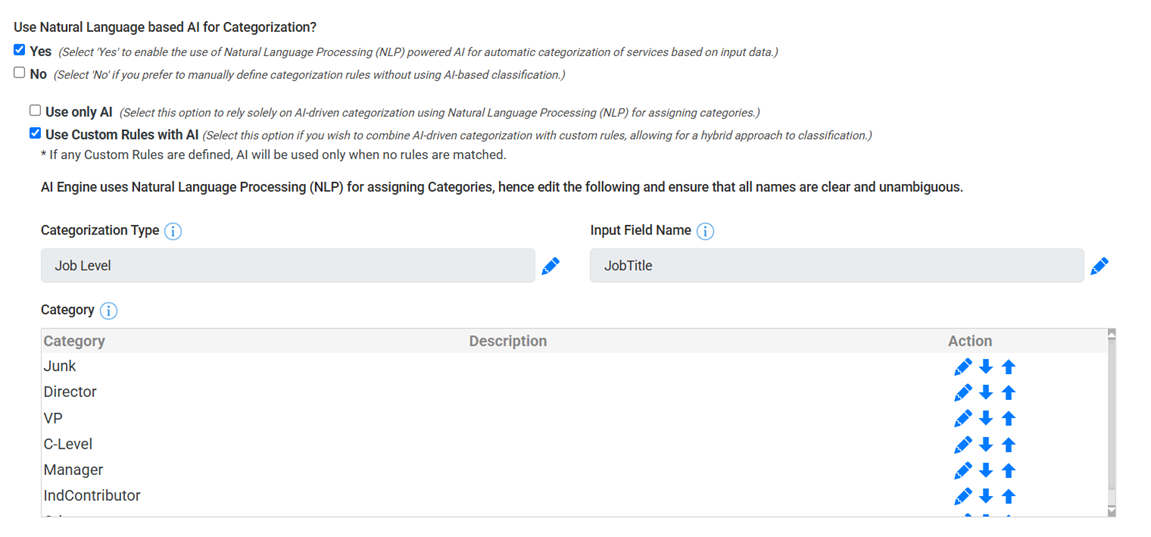
3.2.1 Use Only AI- By enabling this option, the categorization process will rely solely on AI-driven analysis, providing results based entirely on AI intelligence without applying predefined rules.
3.2.2 Use Custom Rules with AI– If any Custom Rules are defined, AI will be used only when no rules are matched.
3.2.2.1 Categorization Type– This will include the type of Categorization that excludes generic terms, emphasizes technical categories, or applies industry-specific taxonomy to ensure tailored classification. For example, Job Level.
3.2.2.2 Input Field Name – This field will be pre-filled but remains editable. Ensure that the provided input field aligns with the selected categorization type for accurate processing. For example, JobTitle.
3.2.2.3 Category- This field will be pre-filled but remains editable. The assigned category groups data based on the input provided.
Description– Click on the edit option to provide a category description.
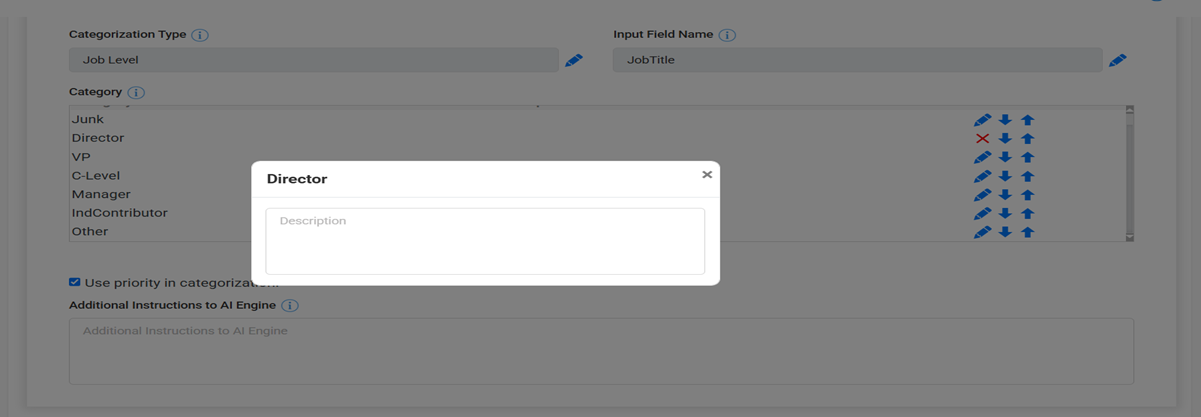
Action– This includes options to edit the category, move it up to increase its priority, or move it down to decrease its priority.
‘Use priority in Categorization’- Select the checkbox to maintain the same priority as defined above.
For example, if the input is ‘Marketing Manager’ and the category ‘Marketing’ holds higher priority than ‘Manager’, the AI will analyze the input and return ‘Marketing’ as the output based on the assigned priority.
3.2.2.4 Sub-Category Values- This field will be pre-filled but remains editable. If a subcategory is applicable, it must be correctly aligned under its respective category to maintain structured classification.
3.2.2.4 Additional Instructions to the AI Engine– The user can provide additional instructions in Natural Language to enhance AI understanding.
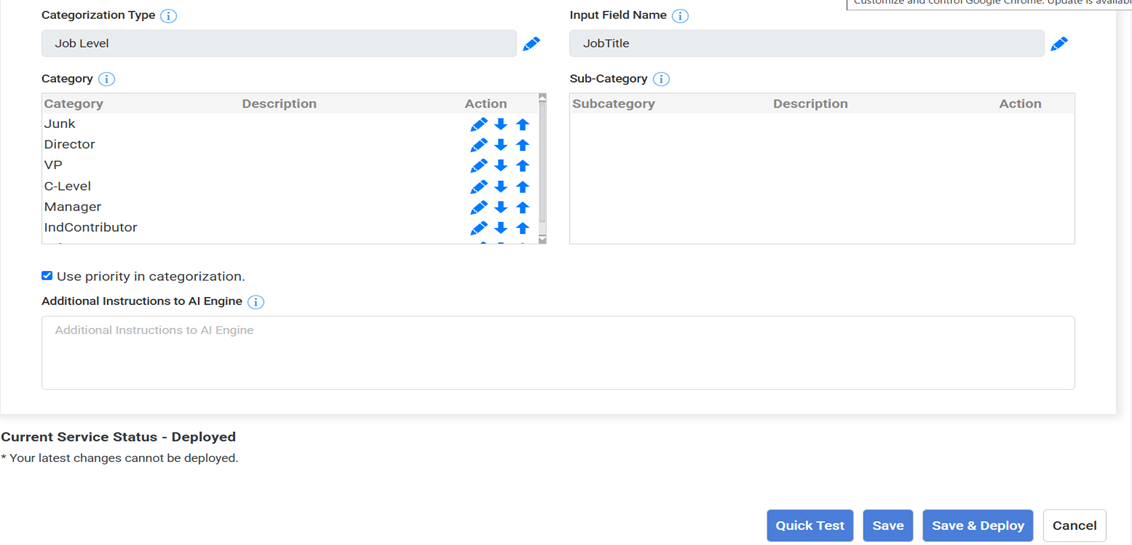
- Quick Test – Click on Quick Test to validate the service and preview the categorized results in real time.
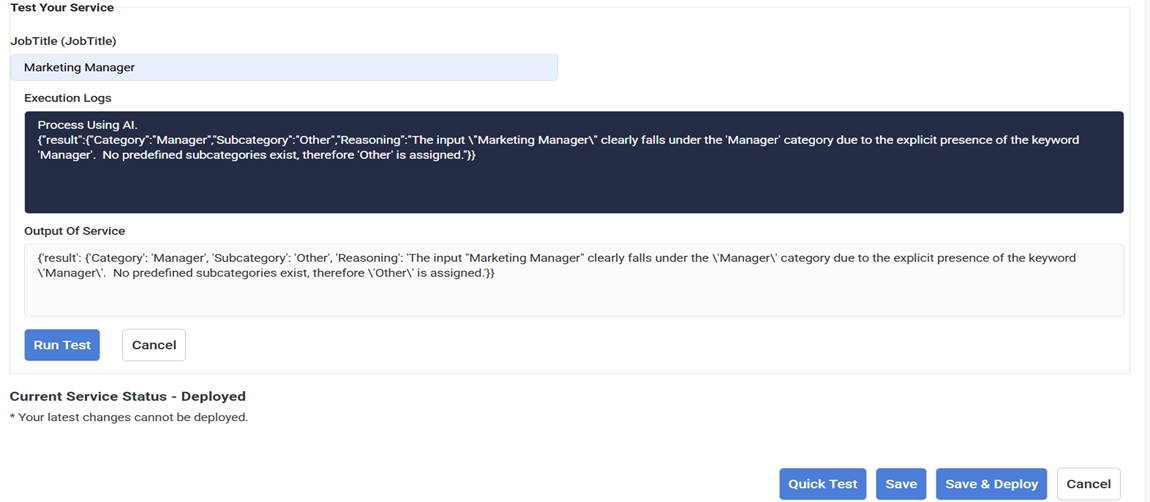
To test the service in real time, enter the Input Fields and click on the ‘RunTest’ option to check the results.
For example, enter ‘Marketing Manager’ in the Job Title field and run a test. The AI will analyze the input to determine if it aligns with the provided list of categories.
Create Custom Rule
To create a custom rule, you’ll define a Rule Id, a Match Expression that evaluates whether a certain condition is true, and then specify the Category and Sub-category that should be returned when the rule evaluates to true.
Here’s a detailed structure for how this can be defined:
Rule Format:
- Rule Id: A unique identifier for the rule. (e.g., “rule_1”)
- Match Expression: A JavaScript expression that is evaluated for each input. If the expression returns true, the rule is applied.
- Category: The top-level classification or group that the rule belongs to.
- Sub-category (optional): A further classification under the main category, which can be defined.
Relational Operators You Can Use:
- ==: Equal to
- ===: Strictly equal to
- !=: Not equal to
- !==: Strictly not equal to
- >: Greater than
- <: Less than
- >=: Greater than or equal to
- <=: Less than or equal to
- &&: Logical AND
- ||: Logical OR
- !: Logical NOT
Relational Operators
Operator | Description | Example |
LIKE | The LIKE operator returns categories and subcategories if inputs match a specified pattern. | Given That x=CFFO LIKE(x,’%CFFO%’) Result: It will return TRUE. LIKE(x,’%CEO%’) Result: It will return FALSE. |
NOTLIKE | The NOTLIKE operator returns category and subcategories if inputs do not match a specified pattern. | Given that x= CEO NOTLIKE(x,’%Officer%’) Result: It will return TRUE. NOTLIKE(x,’%CEO%’) Result: It will return FALSE. |
IN | IN operator returns category and subcategories if inputs are equal to one of a list of expressions. | Given that x=9,8,7 IN(x,[9,8,7]) Result: It will return TRUE. IN(x,[3,4,5]) Result: It will return FALSE. |
NOTIN | NOTIN operator returns category and subcategories if input is not equal to one of a list of expressions. | Given that x = 6 NOTIN(x,[9,8,7]) Result: It will return TRUE. NOTIN(x,[6,8,7]) Result: It will return FALSE. |
STARTWITH | STARTWITH operator returns category and subcategories if input string starts with characters specified into the expression. | Given that x = test STARTWITH(x, ‘test’) Result: It will return TRUE. STARTWITH(x, ‘success’). Result: It will return FALSE. |
ENDSWITH | ENDSWITH operator returns category and subcategories if input string ends with characters specified into the expression. | Given that x = test ENDSWITH(x, ‘test’) Result: It will return TRUE. ENDSWITH(x, ‘success’). Result: It will return FALSE. |
EQUALSIGNORECASE | EQUALSIGNORECASE operator returns category and subcategories if inputs match with characters specified into the expression, ignoring lower case and upper case differences. | Given that x = TEST EQUALSIGNORECASE(x, ‘test’) Result: It will return TRUE. EQUALSIGNORECASE(x, ‘success’’) Result: It will return FALSE. |
EQUALS | EQUALS operator returns category and subcategories if input value is equal to expression. | Given that x=50 EQUALS(x, 50) Result: It will return TRUE. EQUALS(x, 51) Result: It will return FALSE. |
NOTEQUALS | NOTEQUALS operator returns category and subcategories if inputs value is not equal to expression. | Given that x=50 NOTEQUALS(x, 10) Result: It will return TRUE. NOTEQUALS(x, 50) Result: It will return False. |
Logical Operators
Operator | Description | Example |
!=(Not Equal) | This operator returns true if the operands are not equal | Given that x=5 x!=12 Result: It will return TRUE. x!=5 Result: It will return False. |
==(Equal to) | Equal to operator returns true if the operands are equal. | Given that x=12 x==12 Result: It will return TRUE. x==10 Result: It will return False. |
>(Greater than) | Greater than operator returns true if left operand is greater than the right operand. | Given that x=15 x>12 Result: It will return TRUE. x>16 Result: It will return False. |
<(Less than) | Less than operator returns true if the left operand is less than the right operand. | Given that x= 10 x<12 Result: It will return TRUE. x<9 Result: It will return False. |
>=(Greater than or Equal to) | Greater than or Equal to operator returns true if the left operand is greater than or equal to the right operand. | Given that x=15 x>=12 Result: It will return TRUE. x>=16 Result: It will return False. |
<=(Less than or Equal to) | Less than or Equal to operator returns true if the left operand is less than or equal to the right operand. | Given that x=8 x<=12 Result: It will return TRUE. x<=6 Result: It will return False. |
&&(AND) | AND operator returns true if both the operands are true, else returns false. | Given that x=20 x>12 && x<100 Result: It will return TRUE. x>25 && x1<100 Result: It will return False. |
||(OR) | OR operator returns true if either of the operands is true; returns false if both are false. | Given that x=20 x>12 || x<100 Result: It will return TRUE. x>22 || x<100 Result: It will return False. |
Use Case: Lead Categorization for Marketing
Overview:
Marketing teams require precise audience segmentation for targeted campaigns. The RDN AI Categorization Service categorizes leads based on job titles to improve outreach strategies.
Flow:
- The RDN AI Categorization Service analyzes the input fields as job titles and defined categories.
- AI applies predefined rules or AI based on the user selection to assign a job category.
- The categorized data can be stored and used for segmenting marketing campaigns.
- The marketing team utilizes categorized leads for email campaigns and personalized outreach.
Benefits:
- Enhanced lead segmentation for better targeting.
- Improved email personalization and response rates.
- Reduced manual lead classification efforts.