
Service Name: Match Junk Value
- Service Type: Advanced Service
- Service Description: The Junk Lookup service allows users to determine if a given input matches any of the predefined “Junk” values in a list. This is helpful when you need to flag or filter out specific records that fall into a category of unwanted or irrelevant data (e.g., countries, states, etc.). The service checks whether the input value matches any entry in the user-defined set of junk values.
Use Case:
- A user may have a list of countries, and they want to flag specific countries as “Junk” if they appear in that list. For example, the user may have predefined a list of 10 countries they consider “Junk” and wish to check if a newly entered country is part of this list.
- The user can submit a country as input and call the API to check whether this country exists in their pre-defined set of “Junk” countries. This allows the user to easily flag or filter out records that match the junk criteria.
How It Works:
- Define Junk Values: The user creates a list of junk values (e.g., countries, states, or any other data entries that are unwanted or irrelevant for the dataset).
- API Request: The user submits an input (e.g., a country name) and uses the Match Junk Value service to check whether the input matches any value in the predefined junk list.
- API Response: The service will return a result indicating whether the input is part of the junk set, enabling the user to mark the record as junk or take further action, such as excluding it from a report or dataset.
Example Scenario:
- The user has a list of 10 countries, like “United States”, “Canada”, “Mexico”, and others, defined as junk.
- A user submits “Canada” as input. The service will check if “Canada” exists in the junk list and return a match.
- If the service finds “Canada” in the junk list, the user can mark it as junk for processing or filtering purposes.
This service helps streamline data validation processes, particularly when working with large datasets that require flagging irrelevant or unwanted records based on predefined criteria.
How To Use:
Follow the below instructions to use the Match Junk Value service:
- Click on Manage of Match Junk Value Service.
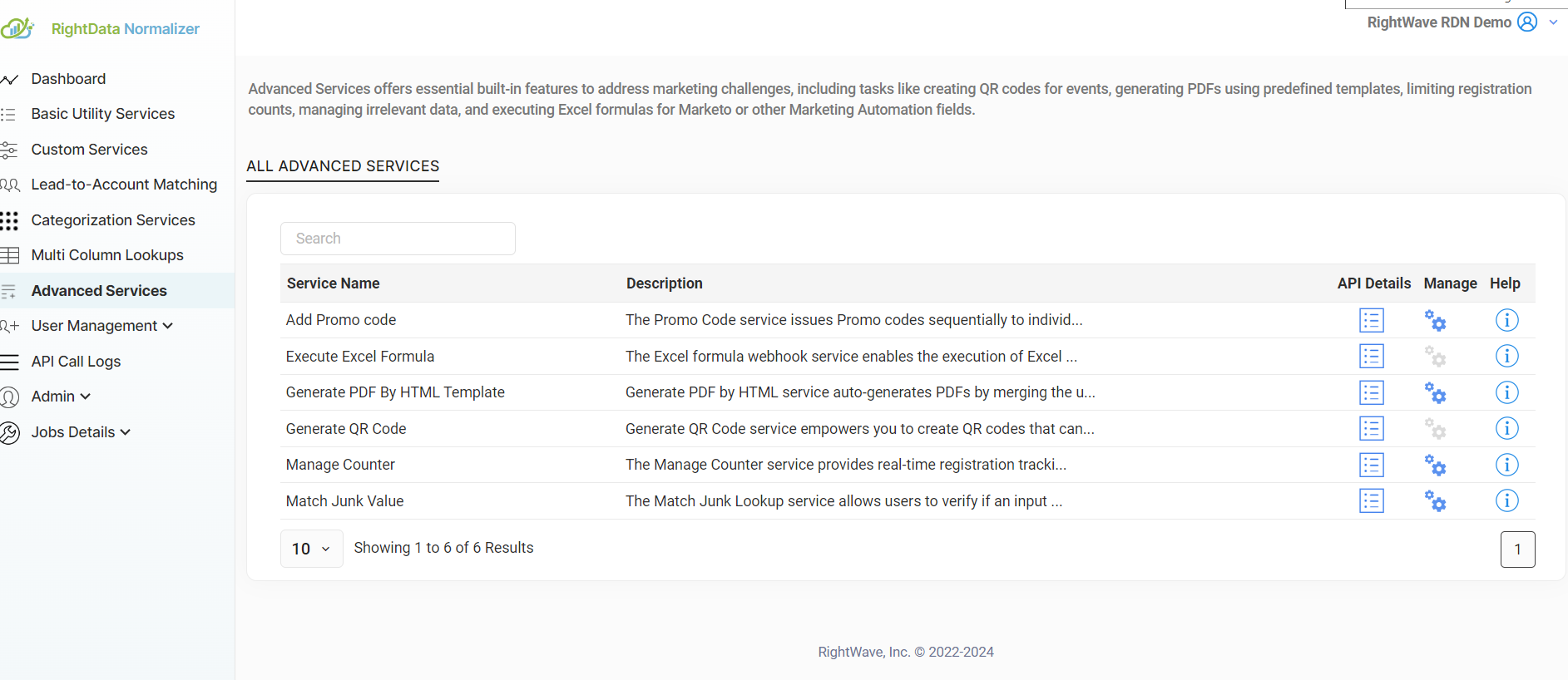
2) Click ‘+’ to use Junk Value Lookup Service.
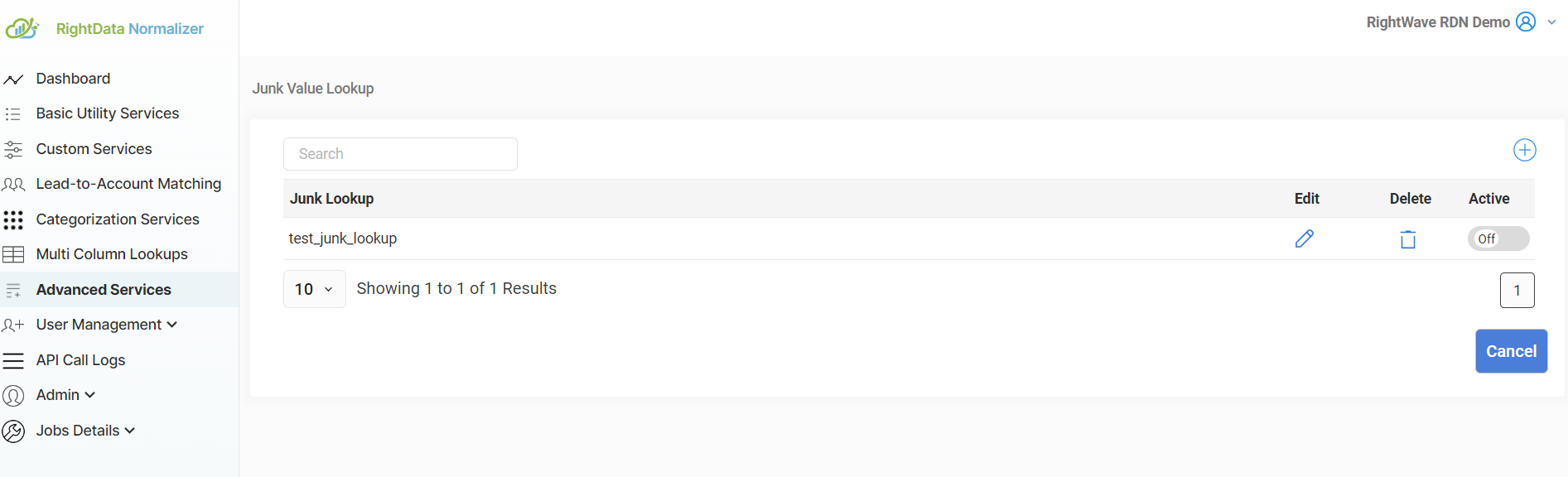
- Enter Junk Lookup Name.
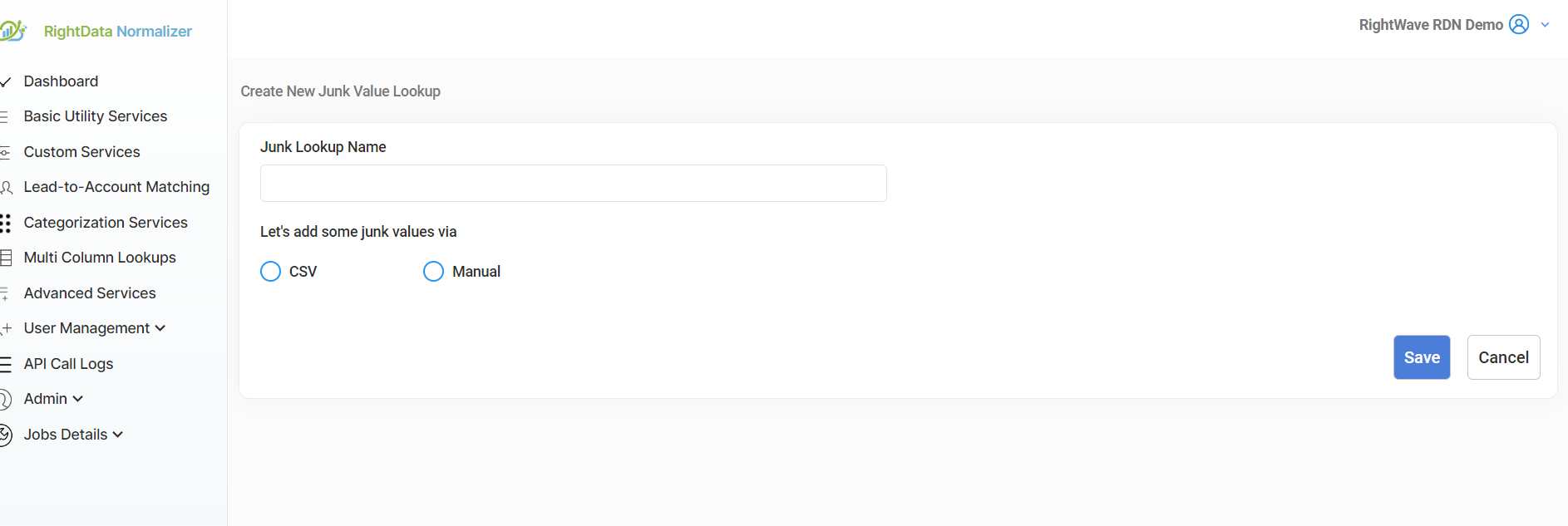
- You can choose any of the following, either CSV or Manual.
- CSV: Ensure there should be one column in CSV i.e. Junk Values. The first row of the CSV file is considered a column name. The rest of the rows are considered as data and there can be a maximum of 1,000 entries including the header.
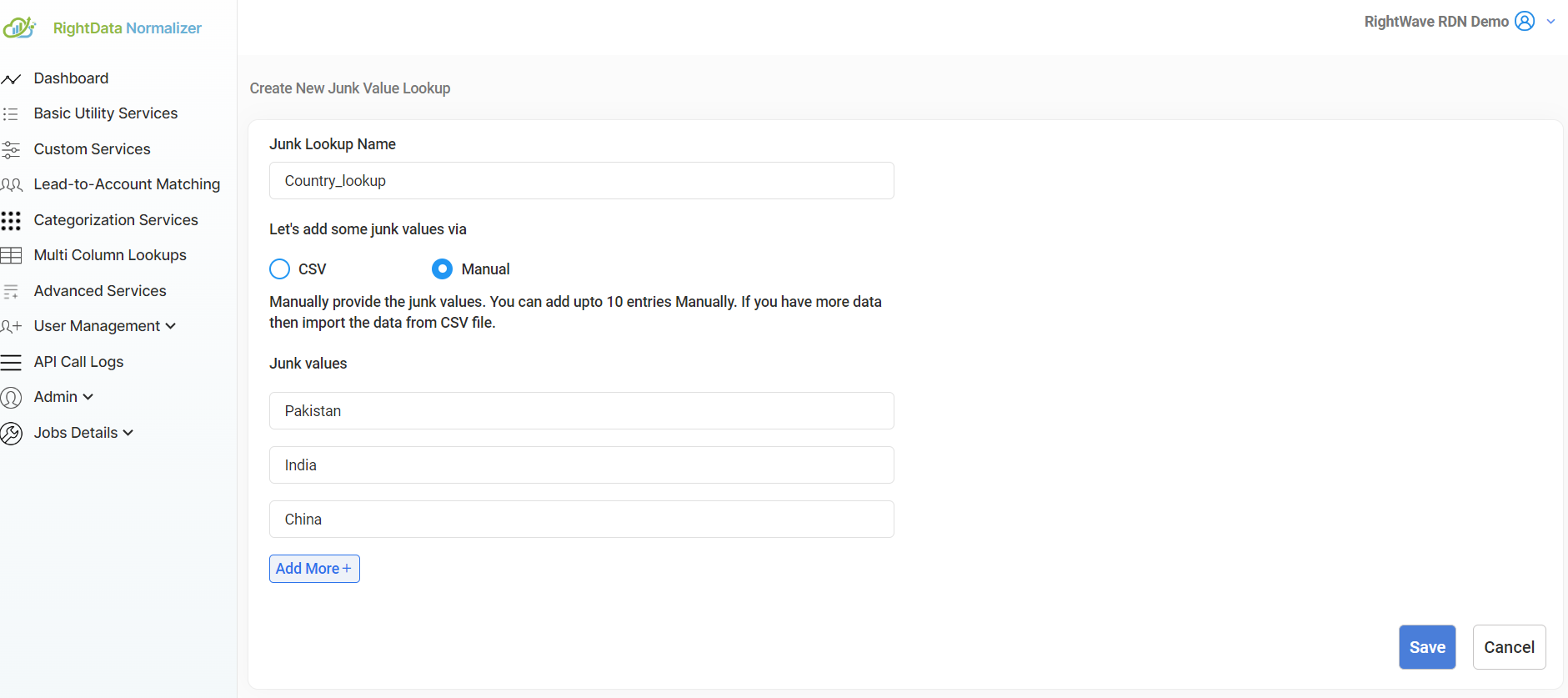
- Manual: Enter junk values manually as shown in the above image. Then save the values.
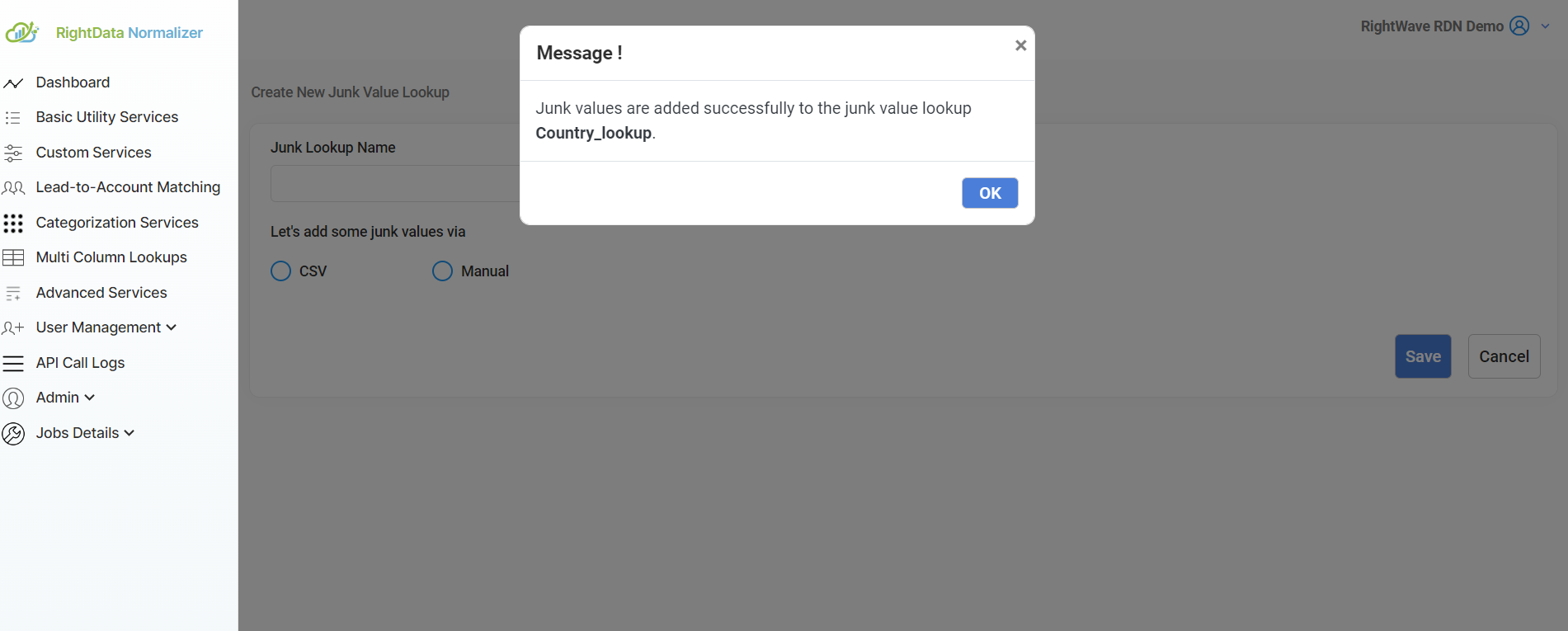
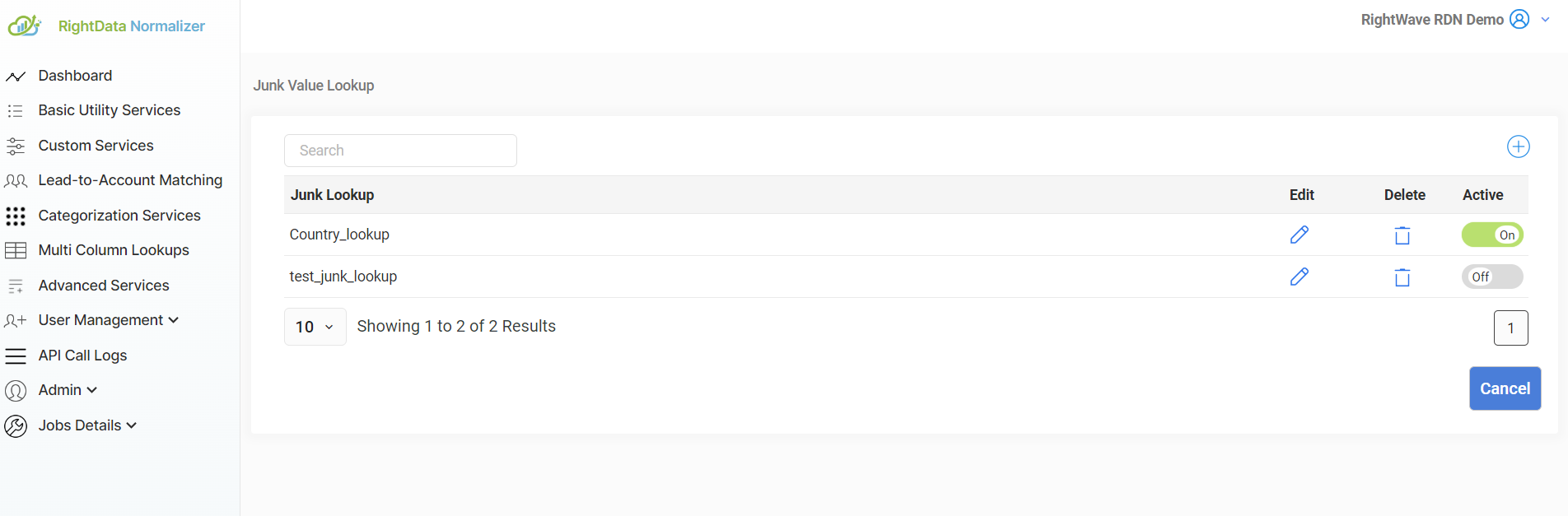
- Activate the Junk Value Lookup Service as shown below.
- User can check the service in the example section by clicking on the Show Live Test Case button and click on Get Result button to get output.
Steps to configure service Match Junk Value in Marketo:
Please note that the request parameters values (in step 2) and Marketo Fields (in step 4) are just for example. You have to enter the values as per your service requirement.
1. Go to Admin and click Webhooks. Click New Webhook.
2. Name and configure your webhook for Service Match Junk Value.
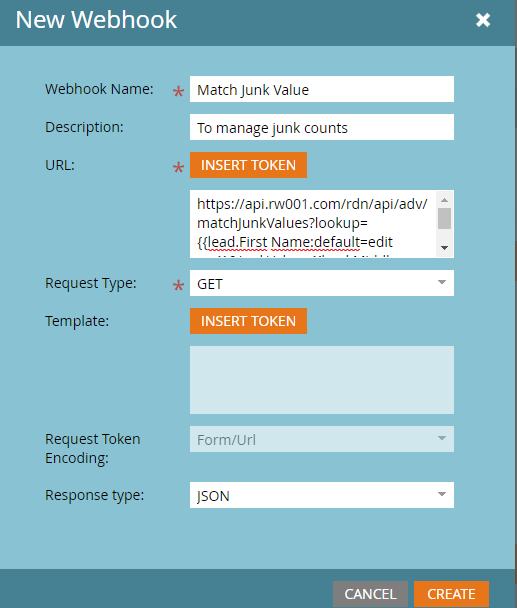
Webhook Name: Name of the webhook. In the above example, the Webhook name is the same as the Service name. Webhook name can be provided as per requirement.
URL: The URL of the Service Match Junk Value. The URL has domain and query parameters which will remain the same. You just have to change the parameter values with Marketo Token.
To insert a token, click Insert Token.
Template: It will remain blank.
Request Token Encoding: It will remain None in case of POST, in case of GET field will be uneditable.
Response type: Select the response format as JSON.
Request Type: The Request Type will remain the same (i.e) GET as given in the example.
- Add Authentication Header.
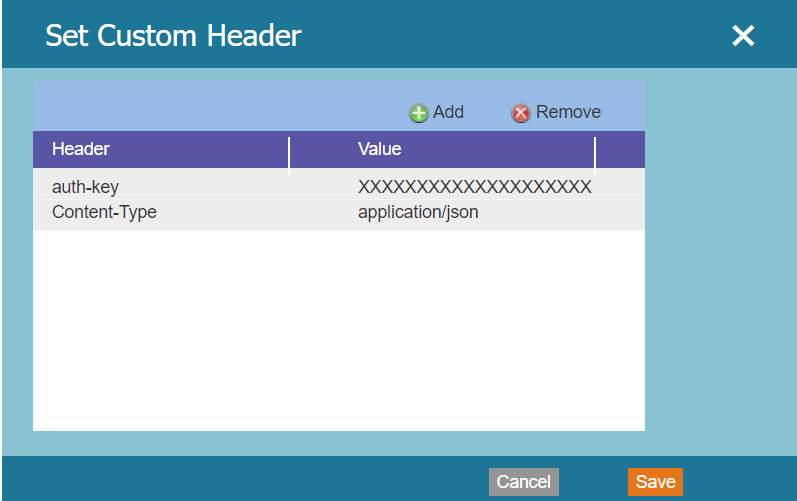
Please note that the auth-key shown above is the original auth-key. So, the same value of auth-key and Content-Type should be used while configuring Webhook as shown.
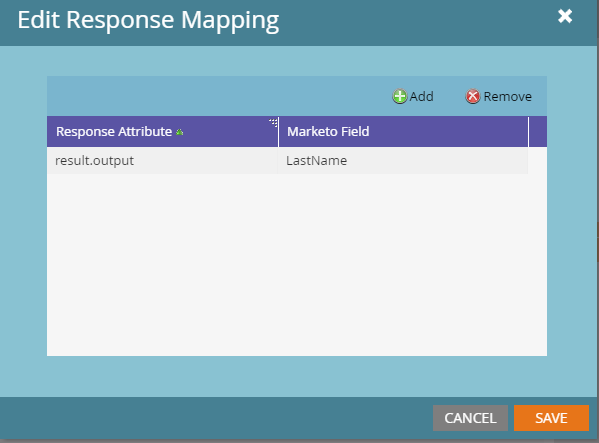
- Response Mappings: Response Mappings are created via pairing of a Response Attribute. The Response attribute depends on the output you are returning from the Custom service JavaScript function. It is recommended to return JSON from custom service so that you can easily map it with the Marketo field.