
Service Name: Generate QR Code
- Service Type: Advanced Service
- Service Description: The Generate QR Code service is designed to generate a unique QR code for registered leads, which can act as an event ticket. This service takes an email address and a QR Code string (containing relevant event details) as input and returns a URL pointing to the generated QR Code image. The QR code can then be scanned at the event to retrieve the information embedded within it. This service is ideal for event organizers who need to provide attendees with QR codes for entry.
How It Works:
- Input Parameters:
- Email: A valid email address of the lead or event attendee.
- QR Code String: This can be a JSON string or any key-value pair delimited by a character. It includes event-specific details such as attendee name, email, event details, etc.
- Generate QR Code: The service takes these inputs and generates a unique QR code that encodes the provided information.
- Return Output: The service will return a URL pointing to the generated QR code image. This URL can be used in event communications like emails or landing pages, and mapped to a Marketo field for use in event promotion.
- Use in Event: The QR code can be scanned by any smartphone scanner at the event, providing quick access to the attendee’s details.
Example Scenario:
Imagine a company is hosting an event and needs to issue unique QR codes to each registered attendee. The following steps would take place:
Imagine a company is hosting an event and needs to issue unique QR codes to each registered attendee. The following steps would take place:
- Event Details: The organizer gathers the attendee’s details such as:
- First Name: Mike
- Last Name: Jordan
- Email: abc123@example.com
- Lead ID: 987643
- Company: RightWave
- Event Venue: Suite-203J, RightWave Infosolutions, Dehradun 248001
- QR Code String: This data is then formatted into a JSON string like:
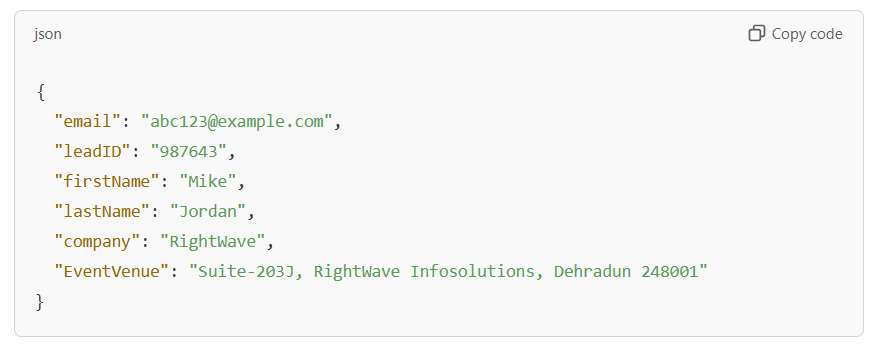
{
“email”: “abc123@example.com”,
“leadID”: “987643”,
“firstName”: “Mike”,
“lastName”: “Jordan”,
“company”: “RightWave”,
“EventVenue”: “Suite-203J, RightWave Infosolutions, Dehradun 248001”
}
- API Request: The organizer uses the Generate QR Code service by calling the following URL with the above payload:

https://api.rightwave.com/rdn/api/adv/genrateQRCode
Response: The service will return a JSON response like:
{
“qrcodeurl”: “https://api.rightwave.com/rdn/qr/6156b29e65bcfc5664451e97”
}
The qrcodeurl field contains the URL pointing to the generated QR code image.
Usage in Marketo: This URL can be mapped to a Marketo field, and the QR code image can be included in emails or landing pages sent to the event registrants. When the attendee arrives at the event, the QR code can be scanned to retrieve their event details.
Steps to configure service Generate QR Code in Marketo
Please note that the request parameters values (in step 2) and Marketo Fields (in step 4) are just examples. You have to enter the values as per your service requirement.
1. Go to Admin and click Webhooks. Click New Webhook.
2. Name and configure your webhook for Service Generate QR Code.
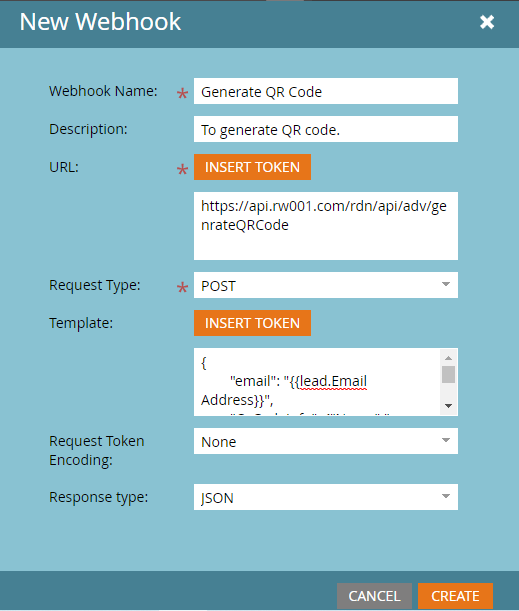
Webhook Name: Name of the webhook. In the above example, the Webhook name is the same as the Service name. Webhook names can be provided as per requirement.
URL: The URL of the Service Generate QR Code. The URL has domain and query parameters that will remain the same.
Template: {
“email”: “{{lead.Email Address}}”,
“QrCodeInfo”: {“Name”:”{{lead.First Name}}”,”Company”:”{{company.Company Name}}”}
}
Request Token Encoding: It will remain None.
Response type: Select the response format as JSON.
Request Type: The Request Type will remain the same (i.e.) POST as given in the example.
- Add Authentication Header.
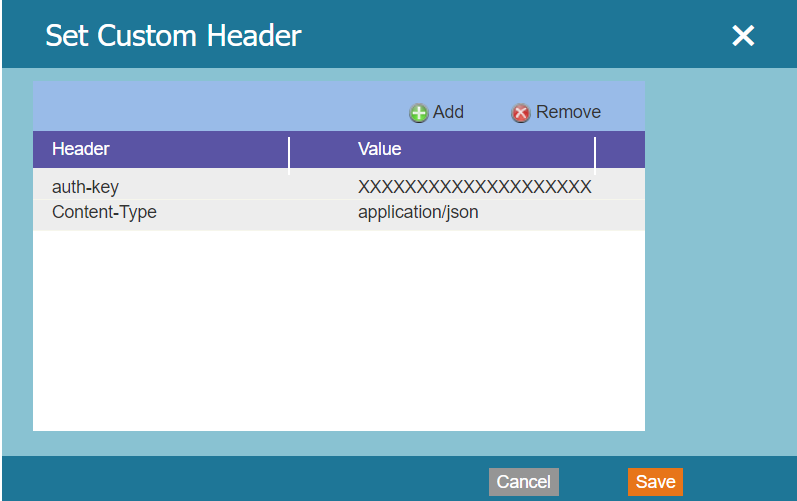
Please note that the auth-key shown above is the original auth-key. So, the same value of auth-key and Content-Type should be used while configuring Webhook as shown.
- Response Mappings: Response Mappings are created via a pairing of a Response Attribute. The Response attribute depends on the output you are returning from the Custom Service JavaScript function. It is recommended to return JSON from the Custom Service so that you can easily map it with the Marketo field.
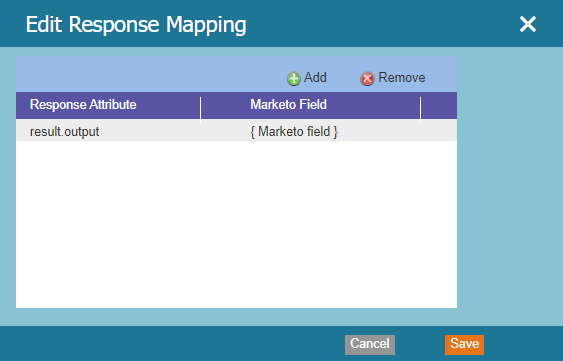
Use Cases:
- Event Registration: When an attendee registers for an event, they can receive a unique QR code that acts as their entry ticket.
- Lead Management: For marketing automation, each attendee’s details can be embedded in the QR code, and the code can be scanned to quickly access their information.
- Ticketing: Provide QR codes to attendees which can be scanned at the event to verify entry.
This service simplifies the process of generating and using QR codes for event management, providing both convenience and security for event organizers and attendees.